
Export your data
Download a full copy of a business's records and files, schedule copies to your own storage, restore it as a new business or move it to another server, and download everything Adimone holds about you.
Your data is yours to take. The owner of a business can download a full copy of everything the business holds, and anyone can download everything Adimone holds about them.
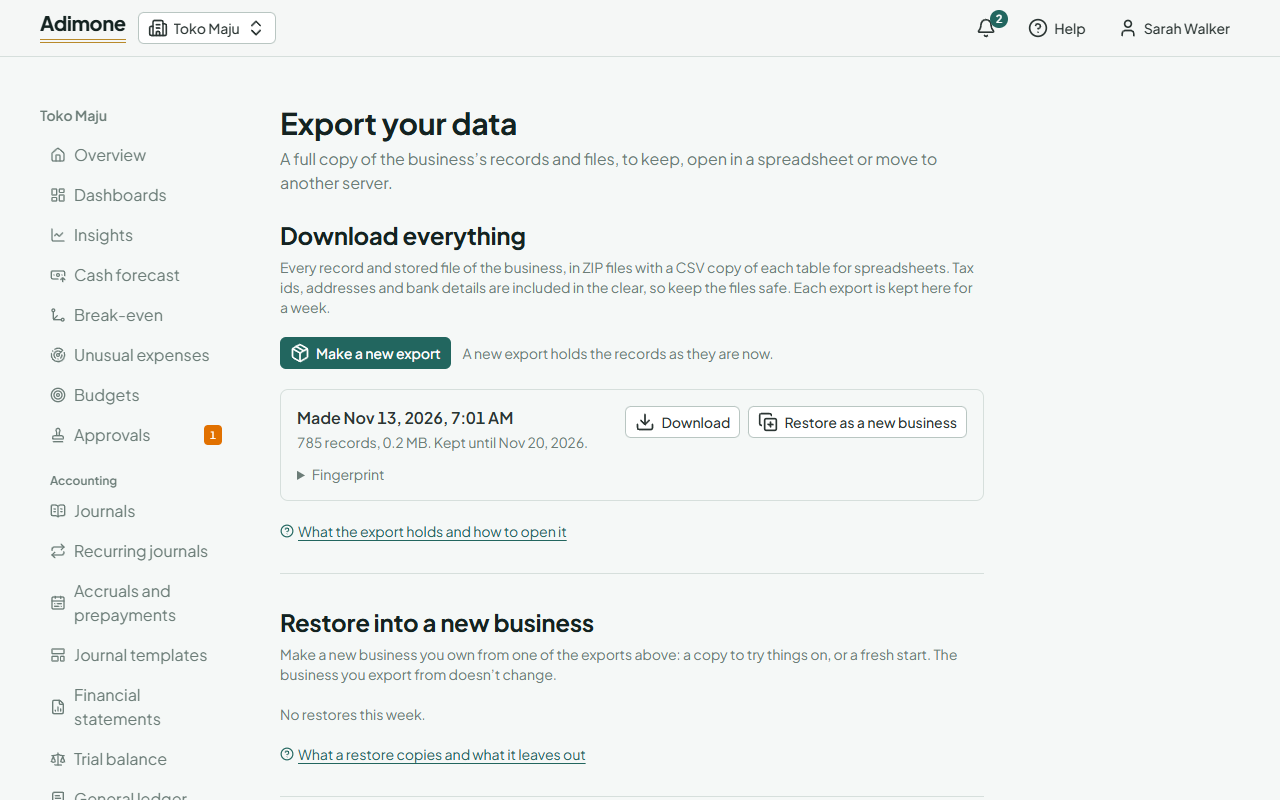
Make an export
- Open Export your data (in the menu, under Business). Only the owner sees it: the export holds every record, including what other roles can't see.
- Choose Make an export. Adimone may ask you to confirm it's you first.
- Adimone makes the export in the background. It takes a few minutes, longer for a large business. You can leave the page: a notification tells you when it's ready.
- Choose Download. A very large business comes in several parts (Part 1, Part 2…): download each one.
Each export is kept for a week, then removed. Make a new one whenever you want the records as they are now; one export is made at a time.
What the export holds
- Every record of the business: the books, customers and vendors, items and stock, documents, settings, and the files stored with them (receipts, attachments, logos).
- Sensitive details in the clear: tax ids, addresses and bank details are included as you entered them, so keep the files somewhere safe.
- Not included: the history of undone changes, imports still being checked and files you exported before.
Each ZIP holds a JSON Lines file per table (one record per line, for programs and other software), a CSV copy of each table for spreadsheets, and a signed list of the files with their SHA-256. Fingerprint under an export shows the ZIP's SHA-256 (with several parts, of their SHA-256s joined by commas), to check that the download arrived whole.
Open it in a spreadsheet
Unzip the file and open the CSV of the table you want, for example pty_parties.csv for customers and vendors. The CSV files are UTF-8, so names in any language show correctly.
- Amounts are whole numbers at 4 decimal places:
15000000000is 1,500,000.0000. Divide by 10,000. Quantities are at 6 decimal places (divide by 1,000,000) and exchange rates at 10 (divide by 10,000,000,000). - Text starting with
=,+,-or@has an apostrophe in front, so a spreadsheet shows it as text instead of running it as a formula. - An empty cell is a value that wasn't set.
Scheduled exports
A scheduled export makes a full export of the business every day, week or month and copies it to storage you own, so a recent copy of everything is always outside Adimone. Each copy is deleted here once it's delivered. Setting one up or changing it needs a plan with Recurring documents; a schedule set up earlier can still be paused or removed on any plan.
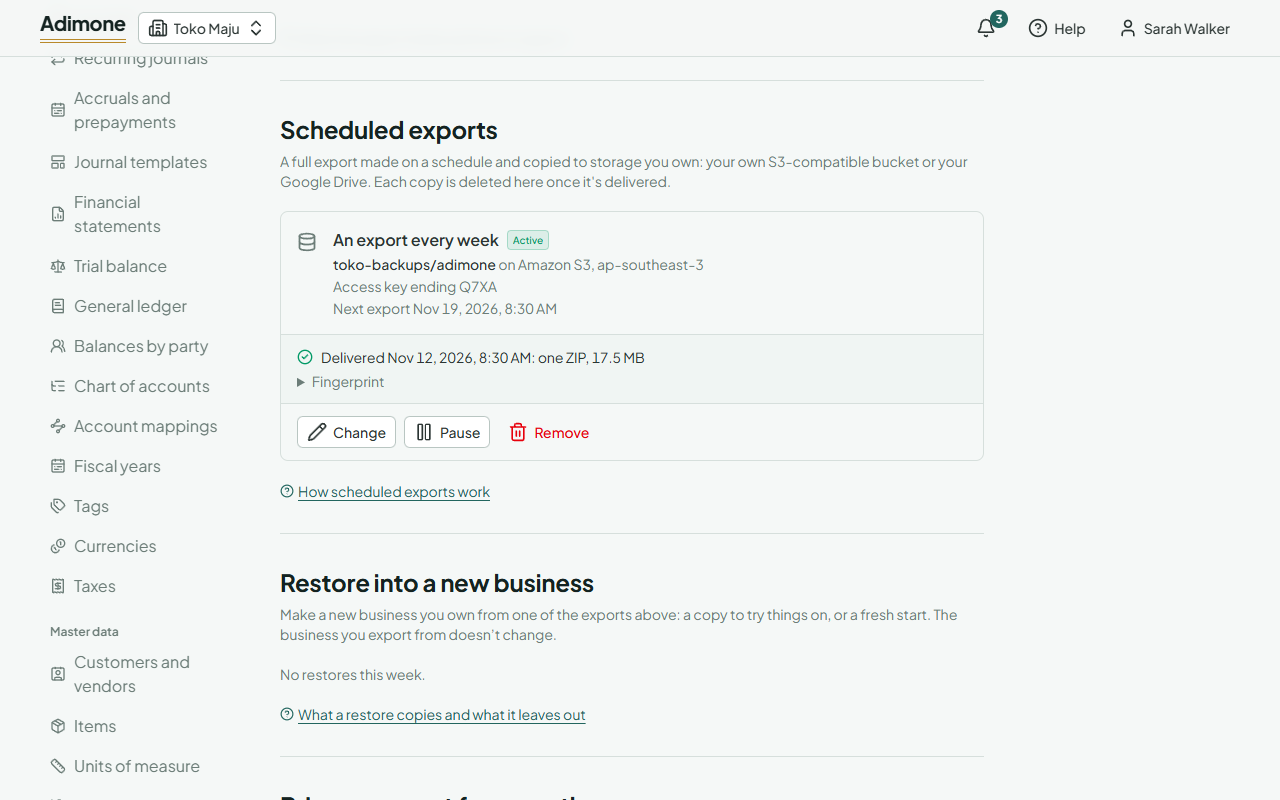
- On Export your data, under Scheduled exports, choose where the exports go: Your own bucket or Google Drive.
- Choose How often: Daily, Weekly or Monthly. Each export is made within the hour after it's due; the first one within the hour after you set it up.
- Fill in the destination, below, and choose Set up scheduled exports (or Connect Google Drive). Adimone may ask you to confirm it's you first: the exports hold every record.
Your own bucket works with Amazon S3 and any S3-compatible service (Cloudflare R2, Backblaze B2, MinIO…):
- Bucket, and its Region for Amazon S3. For another service, leave the region as that service says and enter its https Service address from its console.
- Folder (optional): the folder in the bucket the exports go to.
- Access keys: create keys that can only write to this bucket. They're stored encrypted and never shown again; the page shows only the last four characters. When you change the settings later, leave the keys empty to keep them.
Saving writes a small check file to the bucket first. If that fails, the page says why under Bucket: the keys were refused, there's no such bucket, the service couldn't be reached, or it refused the file.
Google Drive: enter a Folder name (or keep "Adimone exports") and choose Connect Google Drive. Google asks you to allow Adimone to add files to your Drive; Adimone sees only the files it makes there. Back on the page, Adimone makes the folder and saves the schedule. Connect another folder later makes a new folder and sends the next exports there. If the page says Google Drive isn't set up on this server, its administrator needs to add the Google Drive integration first (see Set up integrations).
The section then shows how often, where, the next export and the latest one: delivered (with its Fingerprint, to compare with the files in your storage), or why it wasn't. Adimone also notifies you when a delivery fails. Choose Change to edit the settings, Pause to stop making exports for a while (Resume makes an overdue one within the hour), or Remove to stop for good: what was already delivered stays in your storage.
Restore into a new business
An export can become a new business you own: a copy to try things on without touching the real books, or a fresh start from the same records.
- On Export your data, choose Restore as a new business beside a finished export, then Restore. Adimone may ask you to confirm it's you first.
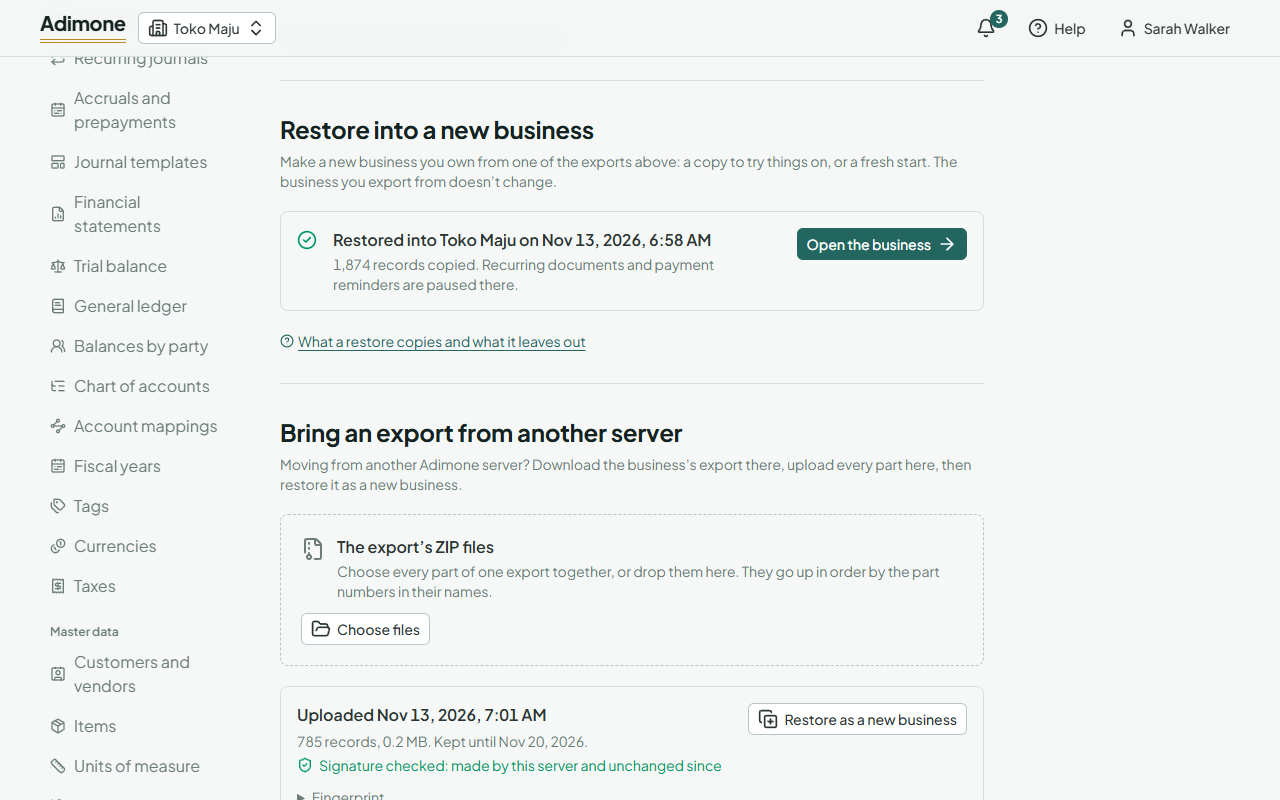
- The restore runs in the background, a few minutes for most businesses. Under Restore into a new business it shows as running, then as restored with Open the business. The new business also appears in your list of businesses.
What the new business gets and what it doesn't:
- Copied: every record and stored file in the export, with the business's name and settings.
- Not copied: members (you are its only member, as owner; invite the others again), the subscription (the new business starts its own trial), shared document links, and the old members' notifications.
- Paused: recurring journals, recurring documents and payment reminders, so customers aren't billed or reminded twice. Turn them back on in the new business when you mean to use it.
- Unchanged: the business you exported from. To stop using the old one, archive it.
Move a business from another server
Moving from another Adimone server (for example, from adimone.com to your own server, or back) takes an export there and a restore here.
- On the old server, make an export and download every part.
- On this server, sign in and open Move a business here (in your personal workspace's menu, under Settings), or Export your data in a business you own.
- Under Bring an export from another server, choose Choose files and pick every ZIP of the export together, or drop them on the box. Adimone puts them in order by the part numbers in their names (
part1of3,part2of3…) and says if one is missing. - Choose Upload the file (Upload 3 parts for an export in three parts). Each part goes up in turn; with the last one Adimone checks that the parts are one complete export.
- Open Fingerprint under the upload and compare it with the export's fingerprint on the old server: if they match, these are the files it made. An export this server made itself shows Signature checked instead.
- Choose Restore as a new business, as above. The upload is removed once restored.
Why an upload can be refused:
- Not an Adimone business export: the file is another ZIP, or a personal data export.
- Another part than the one expected, or files from different exports: choose every part of one export, and only those.
- Changed after it was made: an export this server signed no longer matches its signature. Download it again.
- The export comes from a newer version of Adimone: restore it once this server is updated.
Your personal data
In Account and security, under Your data, choose Make an export to download everything Adimone holds about you: your profile, where and when you signed in, your security activity, how your two-step verification is set up (never its secrets), your linked accounts, the businesses you belong to, and every record of your personal workspace.
Records of the businesses you work in belong to each business, not to you: ask the business's owner for an export.