
Invite people to your business
Invite staff or your accountant by email, and pause, change or remove members.
The owner and administrators can invite people. Each member gets a role that decides what they can see and do.
Invite someone
- In the business, open Members and choose Invite.
- Enter their email address and pick a role.
- Choose Send invitation.
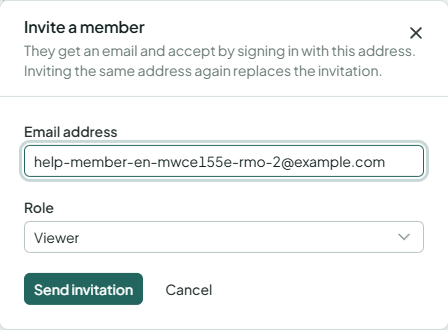
They get an email in your language. To accept, they sign in (or create an account) with that same address, open Invitations and choose Accept. The business then appears in their workspace switcher.
Invitations are open for 7 days and listed under Open invitations until then. To resend one or change the role, invite the same address again: the new invitation replaces the old one. Revoke cancels it.
Invite your accountant
Every business has one free seat for an outside accountant or tax consultant. It costs nothing, doesn't count towards your plan's users, and works on every plan, Free included.
- In Members, choose Invite your accountant. The button shows while the seat is free.
- Enter their email address.
- Choose what they can do: Read and adjust the books (reports, journals and corrections, like an accountant on your team) or Read only (reports and records to review, without changing anything).
- Choose Send invitation.
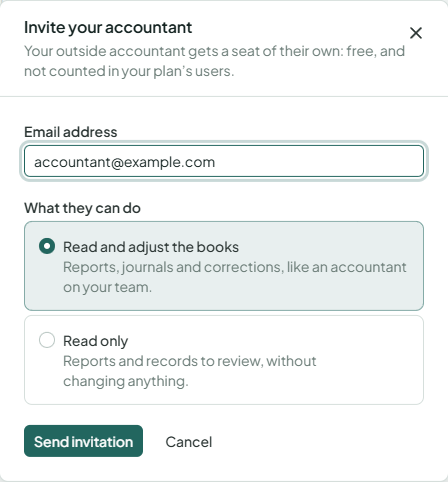
The seat holds one person. To give it to someone else, remove your accountant (or revoke their invitation) first. Your accountant opens the books in accountant mode, with the full ledger.
Manage members
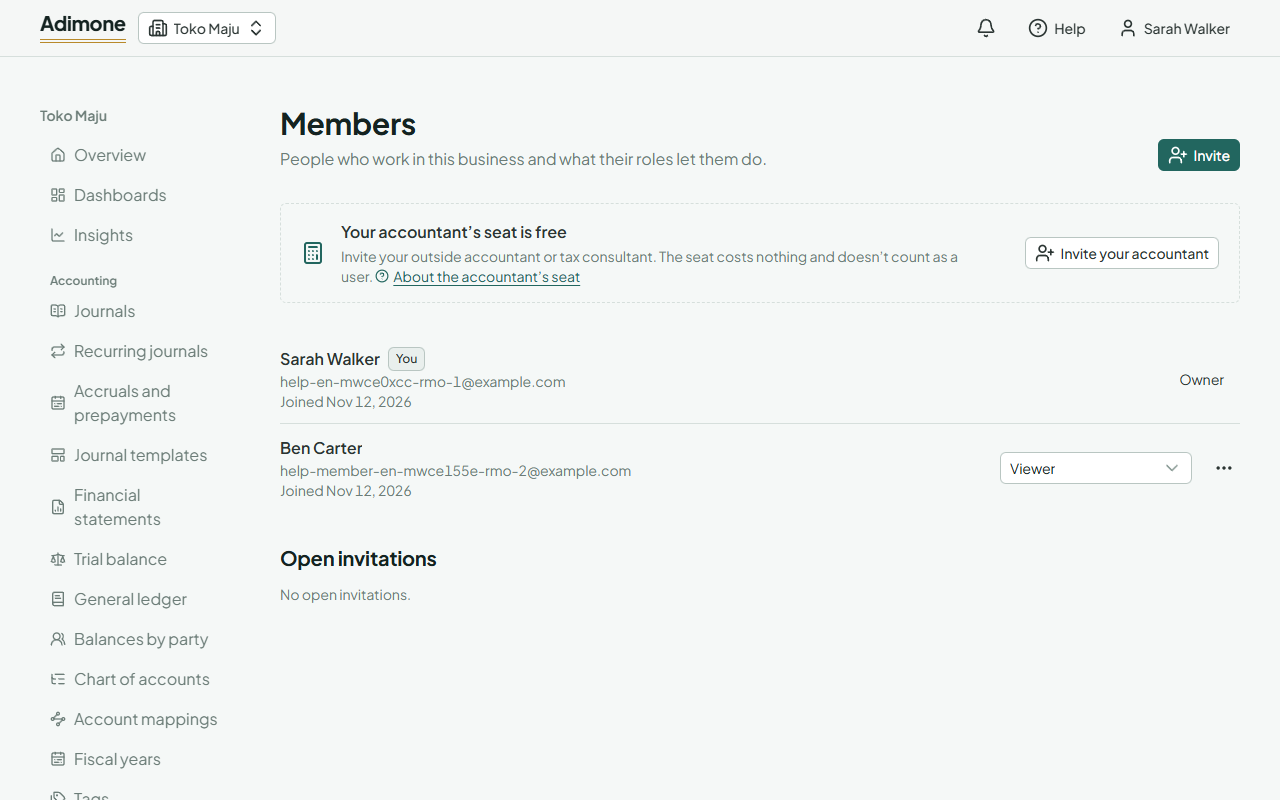
- Change a role: pick another role in the member's row. It applies at once.
- Pause: in the member's … menu, choose Pause. A paused member can still read but can't change anything, until you choose Resume. Only the owner can pause and resume.
- Remove: in the … menu, choose Remove. They lose access at once; their past work stays in the books.
You can only manage members whose role ranks below yours, and give roles that hold only permissions you have yourself.
Plan limits
Each plan includes a number of users (the owner counts). When the business is full, new invitations are refused, and someone who accepts an earlier invitation joins paused. Add users with the extra-user add-on, or pause someone else first. See Plans and billing.
Leaving a business
Members can leave from Settings → Leave. The owner can't leave; hand over ownership first.