
Set up your books
Answer a few questions and Adimone sets up your chart of accounts, currency, first fiscal year and taxes; change the profile later, or start over.
A new business starts with empty books. The setup asks four short questions and then sets up everything you need before you record a sale: a chart of accounts for your industry, the currency of your books, your first fiscal year, the country's tax codes, the common units of measure and your first document designs.
Only the owner or an administrator can run it. Open it from Set up your books on the business overview, or from Setup in the menu.
Run the setup
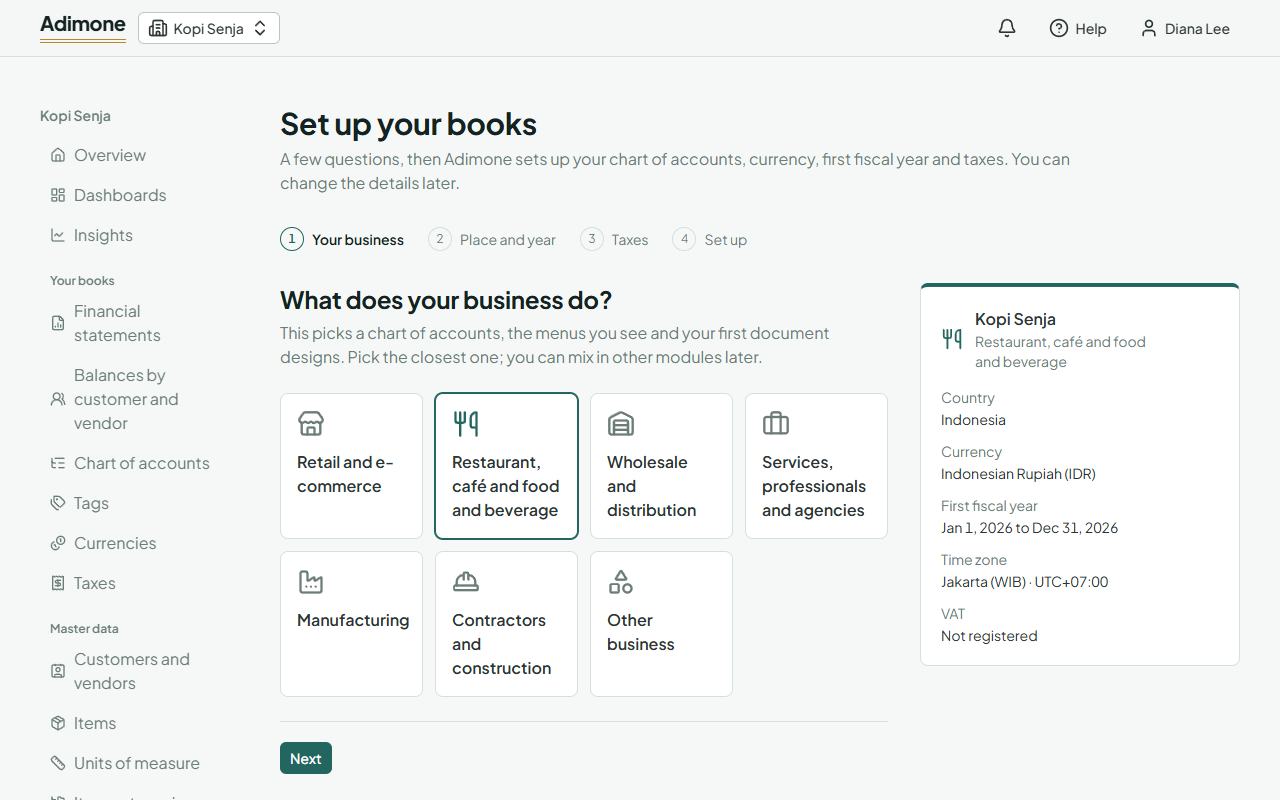
- Your business: pick the industry closest to what you do. It decides the chart of accounts, the menus you see and your first document designs. You can mix in other modules later.
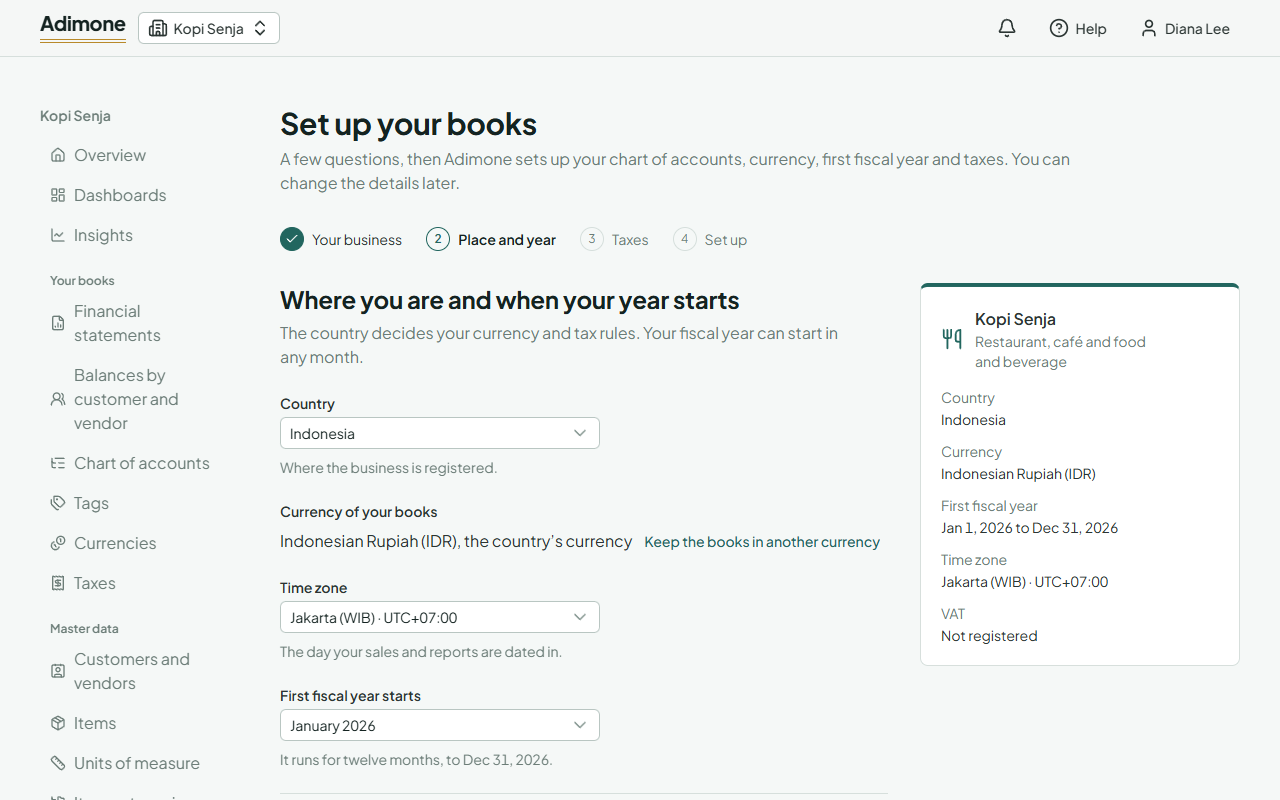
- Place and year: choose the country. It picks the currency of your books (choose Keep the books in another currency if you report in another one) and, in Indonesia, the time zone: WIB, WITA or WIT. Then choose the month your first fiscal year starts; it runs for twelve months.
- Taxes: say whether you're registered for VAT (in Indonesia, a PKP) and whether the prices you enter include tax.
- Set up: check the summary beside the questions and choose Set up the books.
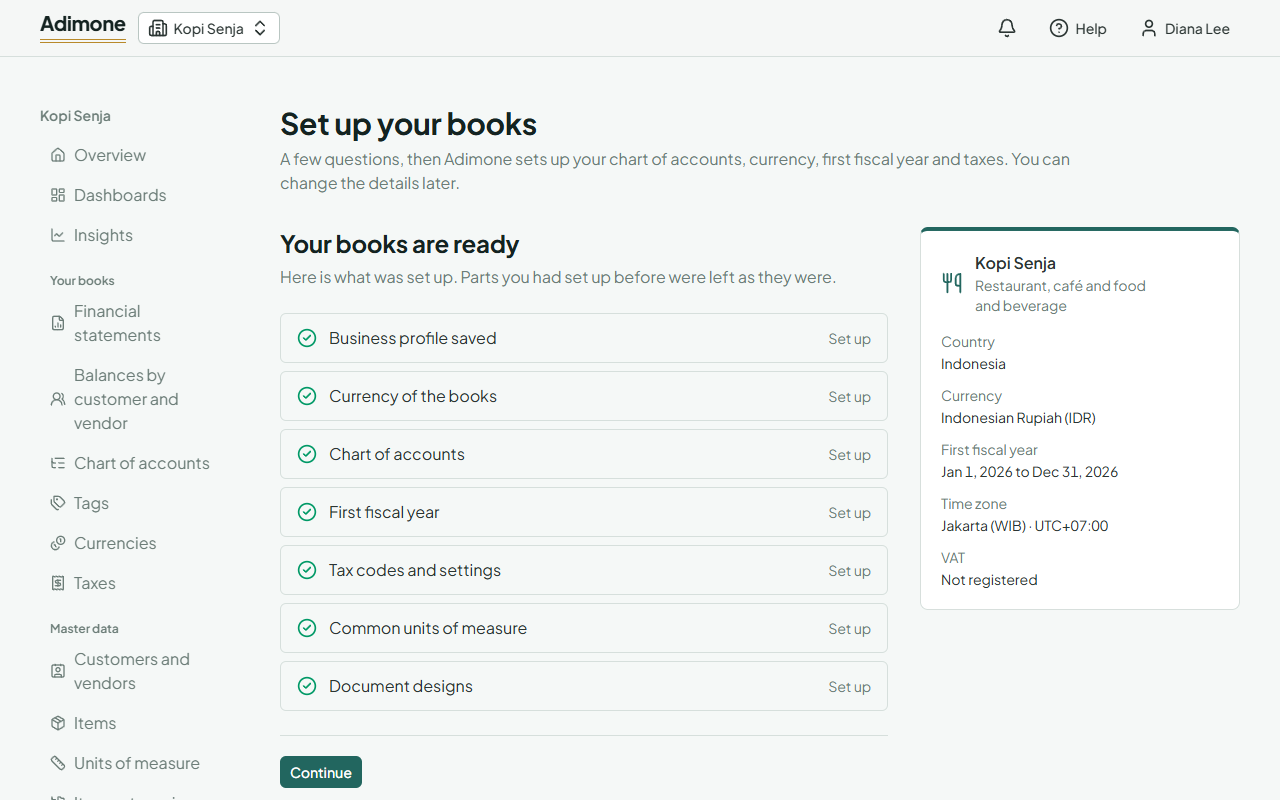
When it's done, the page lists each part as Set up, or Already set up when you had done it by hand before: nothing you set up yourself is changed. If something goes wrong, the parts that worked are kept; fix the problem and choose Try again, which carries on from where it stopped.
The currency of your books can't be changed once anything is posted, so check it before you start. The time zone can be changed later in Settings.
Taxes
The setup adds the country's tax codes and rule pack (Indonesia's PPN codes, or a general set elsewhere). Registered for VAT decides whether your sales documents charge VAT; you can change it later in the business profile. Include tax means the price you type is what the customer pays, and the tax is worked out from inside it; Are before tax adds the tax on top.
Checks and balances
Last, the owner is asked how much the team should check each other's work, with the preset that fits the team's size suggested. Choose Save and finish, or Skip for now and choose later on the Checks and balances page.
Change the business profile
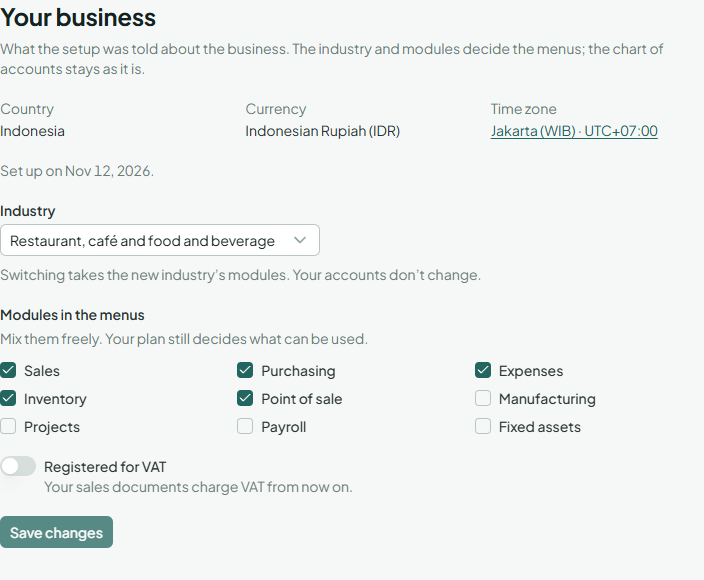
Once the books are set up, Setup shows the business profile:
- Industry: switching takes the new industry's modules for the menus. Your chart of accounts doesn't change.
- Modules in the menus: mix them freely, for example add Projects to a shop. Your plan still decides what can be used.
- Registered for VAT: your sales documents charge VAT from then on.
The country can't be changed: the currency and tax rules follow it.
Simple and accountant mode
The menus show only the modules of your business profile, and each person chooses how the books look to them in the account menu (your name at the top right), under Accounting mode:
- Simple speaks plainly: Who owes you and What you owe instead of receivables and payables aging, and it leaves journals, the trial balance, the general ledger, account mappings and fiscal years out of the menu.
- Accountant shows the full ledger with all of them.
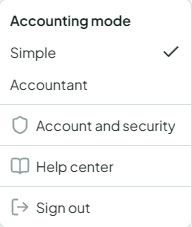
Accountants and your outside accountant start in accountant mode, everyone else in simple mode. Use my role's mode goes back to that default. The mode only changes what you see: roles still decide what you can do, and a screen left out of the menu still opens from its links.
Start over
If you chose the wrong industry, currency or year and haven't recorded anything yet, choose Start over. It undoes everything the setup added: the chart of accounts and its mappings, the currency of the books, the fiscal year, the tax codes and settings, the units and the document designs. You see the whole list before anything changes; anything posted since blocks it. If you changed the business profile since, choose Keep its current value for it. The business profile and its country stay.
Then the setup runs again with your earlier answers filled in, and you can change the industry, the currency, the year and the taxes.