
See who changed what
The change history lists every change to your business, who made it and when, with the values before and after.
Every change to your business is kept in its change history: a new account, a renamed tax code, a posted journal, a new member. Nothing in it can be edited or erased, so it is the record to go back to when a figure looks wrong.
The owner sees the history. Other members see it when their role includes See change history; the Accountant role does.
Read the history
- Open Change history in the menu.
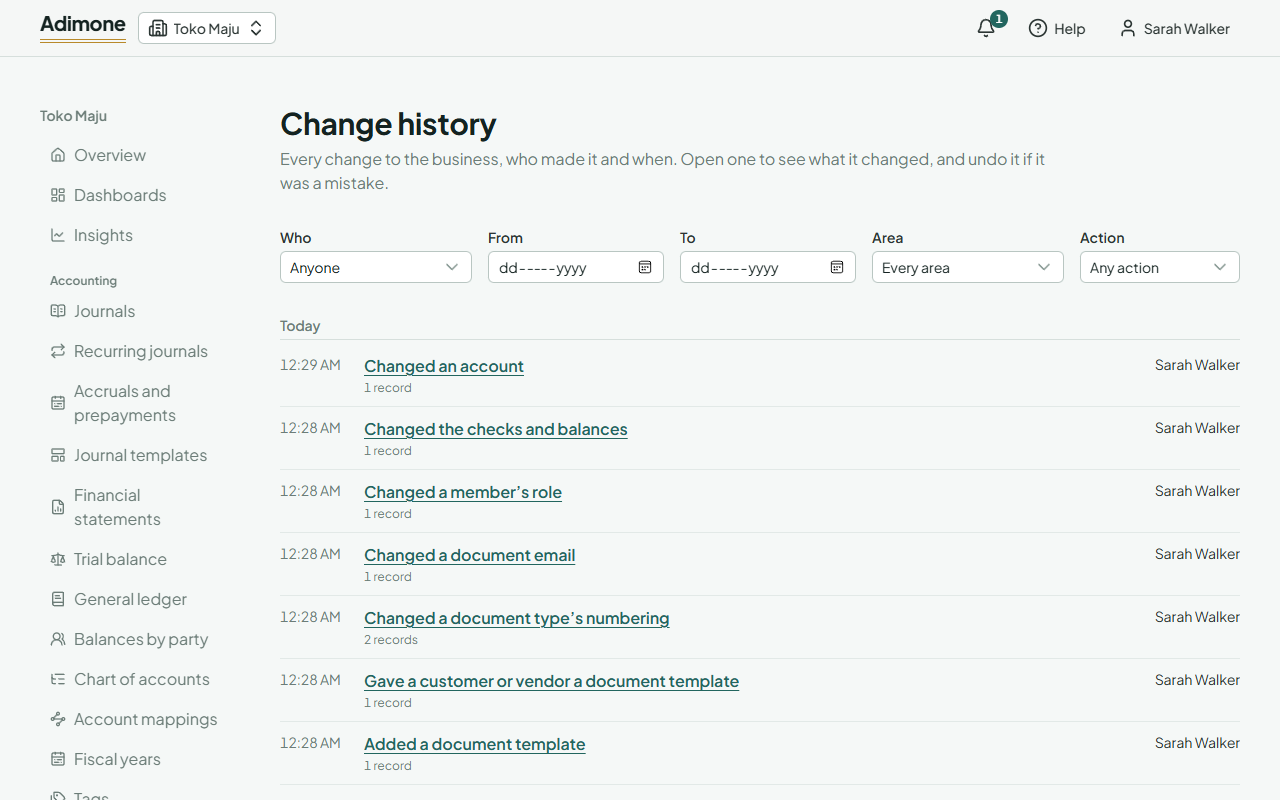
- Changes are listed newest first, by day: the time, what was done, how many records it touched and who did it.
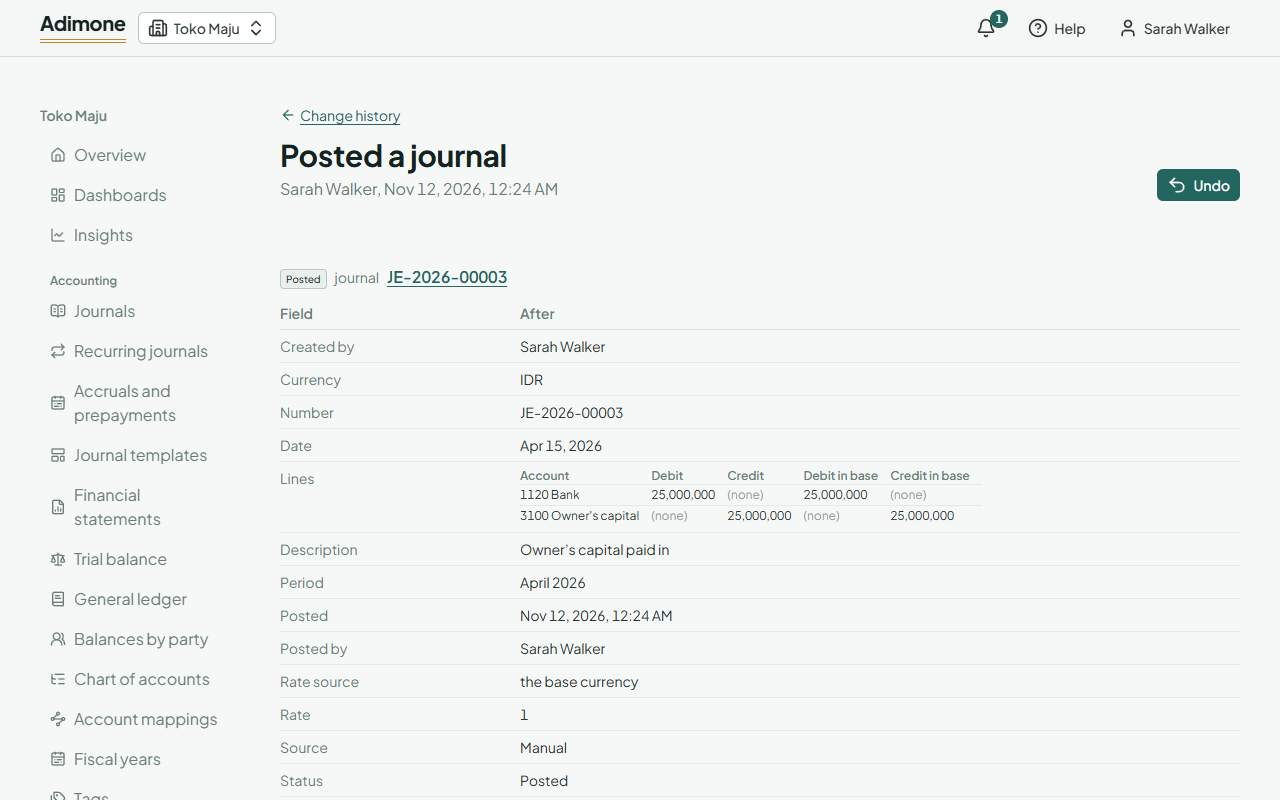
- Choose a change to see each record it touched, with its fields Before and After.
A value that was replaced is struck through once, so the old value stays readable next to the new one. A record that was new has only its After side, and one that was removed only its Before side. Amounts, dates and accounts are shown as on the other screens; a journal’s lines show as a small table.
Some details stay hidden unless your role may see them, such as payroll and bank details. Changes older than two years keep only the names of the fields they changed.
Narrow it down
- Who shows one member’s changes. Changes made automatically, for example by a recurring journal, are marked Adimone (automatic).
- From and To limit the days.
- Area keeps one part of the app, such as Accounting or Taxes. Undos lists the undos themselves.
- Action keeps one kind of change, such as Removed.
The filters stay in the address, so you can share a filtered list with someone who may see the history. To see everything one person did in a window, for example after a password was misused, choose them in Who and pick the days.
One record’s history
Accounts, fiscal years, tag groups and their tags, currencies and exchange rates, tax codes and groups, journals and recurring journals have a History button (or a History item in their menu). It lists that record’s changes, newest first, with the fields each one changed.
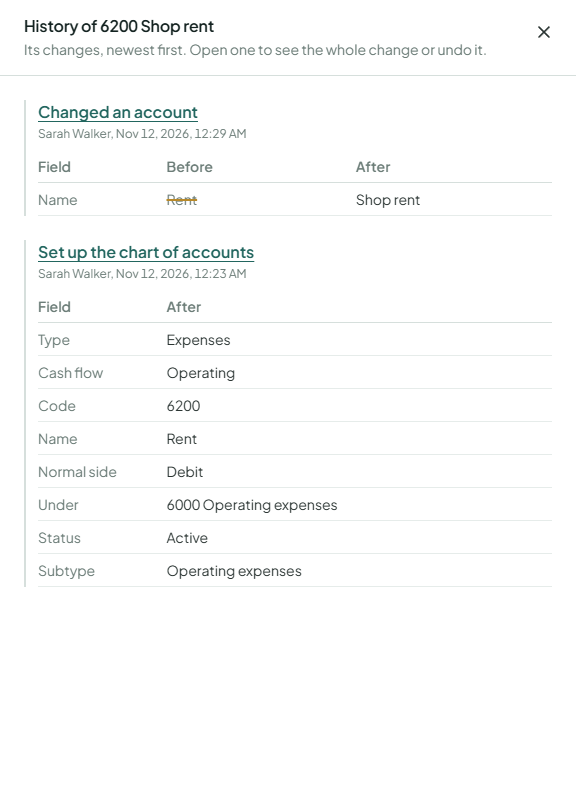
Choose a change in the list to open it, and undo it if it was a mistake.