
Dashboards
See the figures that matter for your part of the business at a glance, and lay out each dashboard the way you want it.
A dashboard puts the business's key figures on one screen: revenue and net income this month, cash and bank, margins and how quickly money comes in. Each role has its own: Owner, Sales, Purchasing and Finance (Inventory and People come later). Your business's type decides which dashboards it shows and in what order.
The first dashboard also appears on the business's Overview, under anything waiting for you. Open Dashboards to see the others.
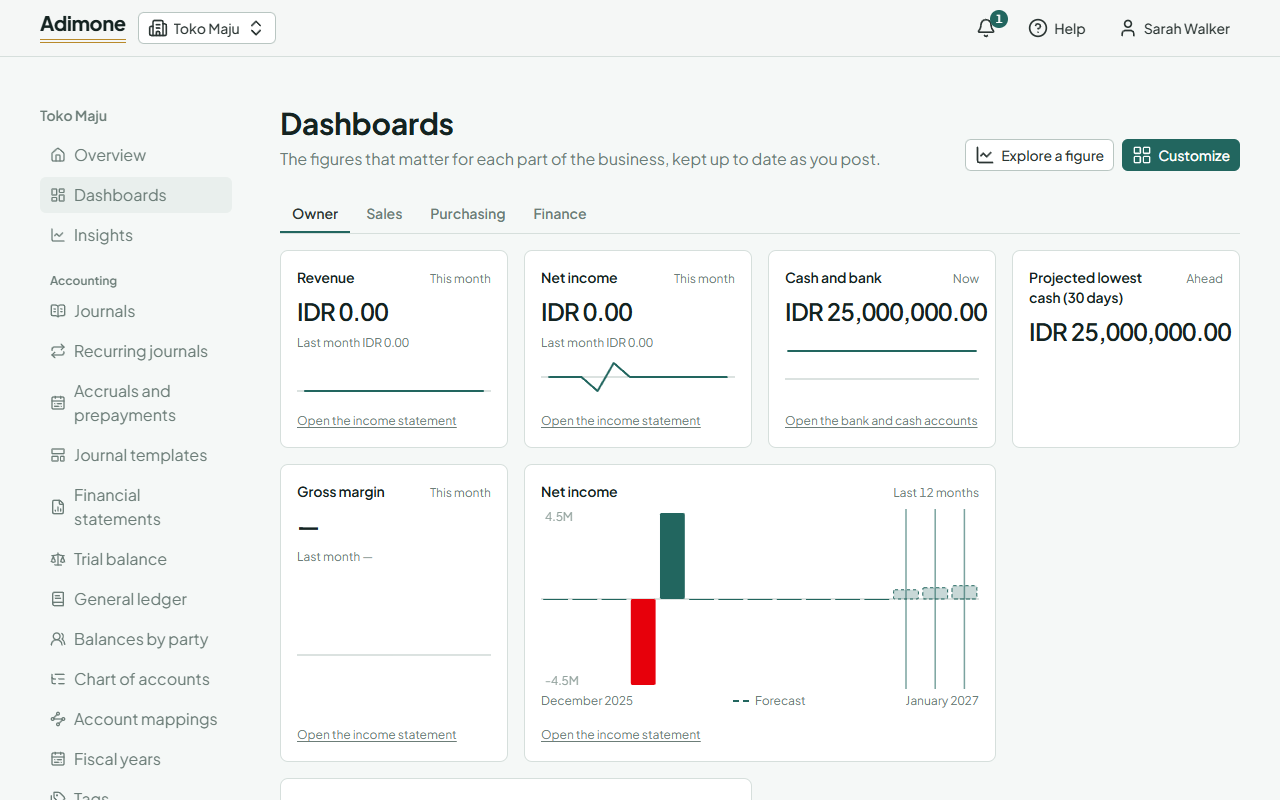
Read a dashboard
Each tile shows one figure:
- A number tile shows the figure for the period under way (this month, this week or today), or a balance as it stands now, with the period before it underneath and a small line of the recent trend.
- A line or bars tile shows the figure over the last 12 months, 13 weeks or 30 days. A dashed part after the history is a forecast.
A negative figure is shown in red. A period with nothing to divide by, such as a margin in a month without revenue, shows "—" rather than zero.
Choose a figure's name to open it in Insights, where you can change the periods, filter by tag and look at the forecast. The link at the bottom of a tile opens the report behind the figure, such as the income statement for this month.
You see only the figures your role lets you see: someone who doesn't see the business's financial figures won't find revenue or net income on their dashboards. Some figures, such as the projected lowest cash and the ratios, come with plans that include insights.
Customize a dashboard
Your layout is yours alone: changing it doesn't change anyone else's.
- Open the dashboard and choose Customize.
- Arrange the tiles in the list: move a tile earlier or later with the arrows, change it with the pencil, or remove it.
- Choose Add a tile to add one: pick the Figure, how to Show as (number, line or bars), the Periods (days, weeks or months), a Forecast for a chart, and its Width.
- Choose Save dashboard.
A dashboard holds up to 24 tiles. To go back to the dashboard's own tiles, choose Customize, then Reset to default.