
Plans and billing
Choose a plan, pay invoices, add users or storage, and cancel. Only the owner manages billing.
Each business has its own subscription. Your personal workspace is always free. Open Billing in the business; members see the plan and what it includes, and the owner manages everything else.
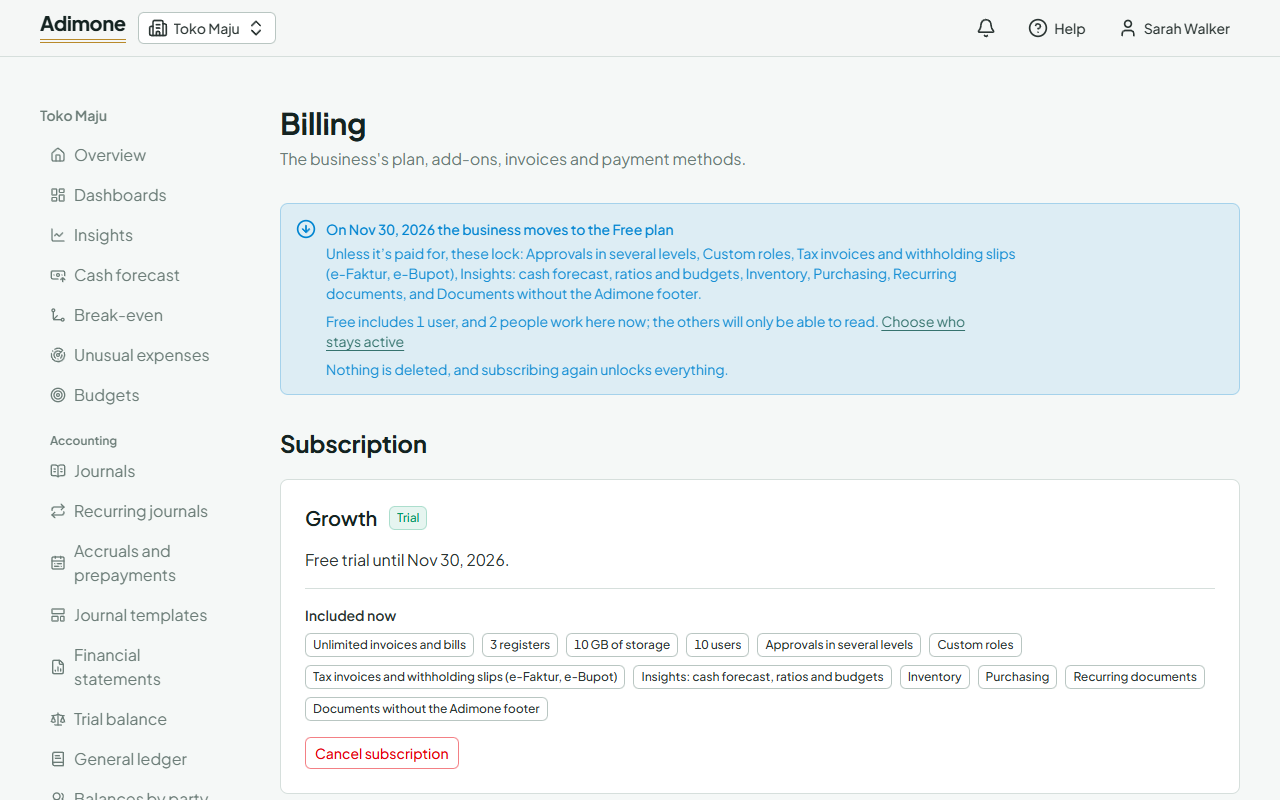
The free trial
A new business starts with a 14-day free trial of Growth. The billing page shows when it ends and what would lock without a subscription. If you don't subscribe, the business moves to the Free plan: nothing is deleted.
Choose a plan
- Under Plans, pick Monthly or Yearly. Each price shows what it comes to with tax, where tax is charged. Yearly saves about two months. Choose the plan's button, for example Choose Starter.
- The first time, confirm where the business is billed: see Billing details. Choose Confirm and continue.
- Enter a promotion code if you have one. A running promotion is applied by itself.
- Pick how to pay and, if you like, tick Keep this method for renewals.
- Choose Continue and pay: you may be sent to the payment page, or shown a QR code or virtual-account number. The page updates when the payment arrives.
A plan applies as soon as it's paid. During the trial, the paid time starts when the trial ends. A receipt arrives by email. Already paying for a plan? See Change plan.
Billing details
Invoices from Adimone carry the taxes of the business's billing country, so the first payment asks you to confirm it. We fill it in from the business's profile, with its legal name, address, tax ID (NPWP) and email; check them and choose Confirm and continue. You can change them later under Billing details on the billing page. The next invoice uses the new details; issued invoices keep the ones they were issued to.
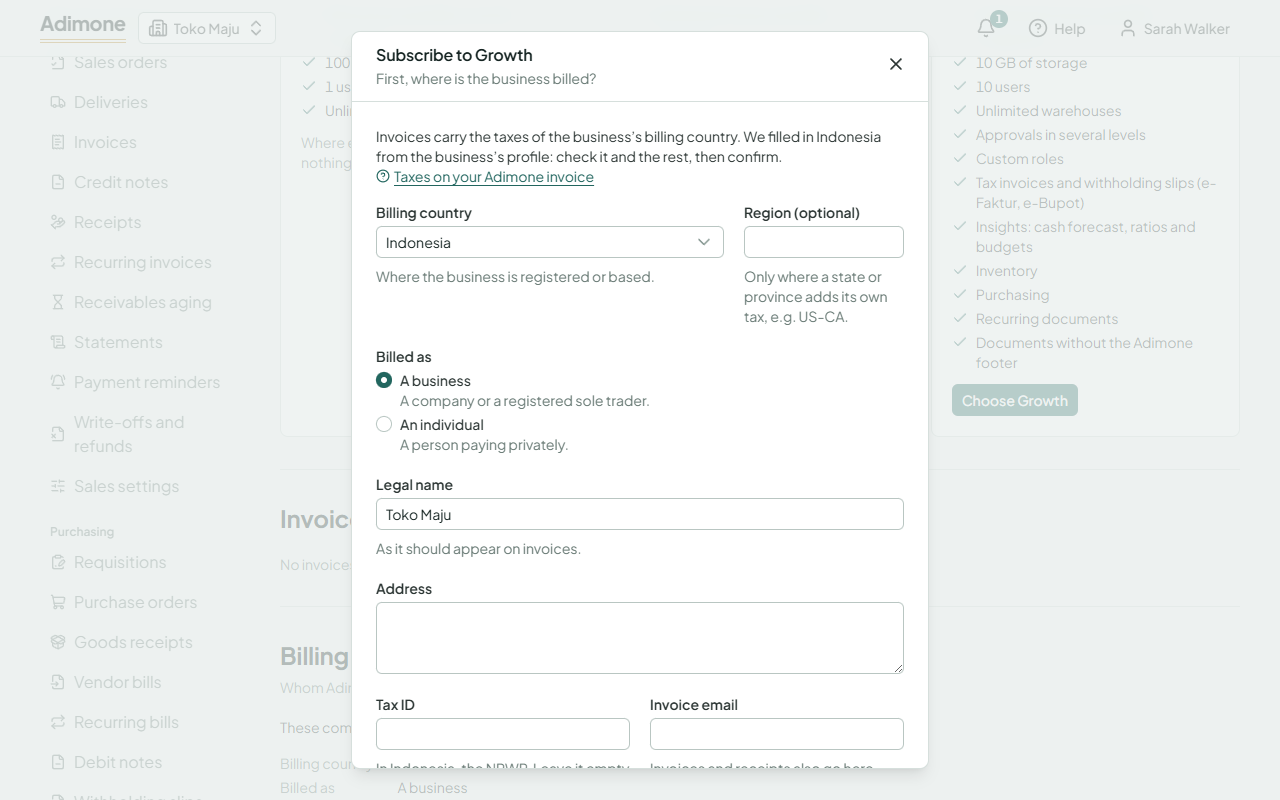
- Billed as: a business or an individual. Some countries charge them differently.
- Tax ID: in Indonesia, the 15- or 16-digit NPWP. Leave it empty if the business has none. Where a country lets a business with a tax ID account for the tax itself (reverse charge), the invoice says so and adds no tax.
- Invoice email: invoices and receipts also go there, besides to you.
Paid plans are sold in a limited number of countries. If the billing country isn't one of them yet, the page says so, and the business keeps using Free.
Taxes on your invoice
Each invoice lists its charges, the subtotal, then one line per tax (for example PPN 12% of Rp 137.500) and the total. In a country whose prices include tax, the tax lines say included and the total stays the price. When no tax is charged, a note under the total says why. Choose Download PDF on an invoice for a copy to keep, in English or in Bahasa Indonesia.
Change plan
While a paid period runs, choose another plan's button under Plans. The dialog says what happens before anything changes:
- A dearer plan (an upgrade) costs the price difference for the rest of the period, for example half the difference when half the month is left. Pick how to pay and choose Pay … and upgrade: the new plan starts as soon as it's paid, and the period keeps its end date. Renewals then cost the new plan's price.
- A cheaper plan, or switching between monthly and yearly, starts at the renewal. Nothing is charged now. The dialog lists what the new plan doesn't include, so you can decide before then. Choose Change on … to schedule it.
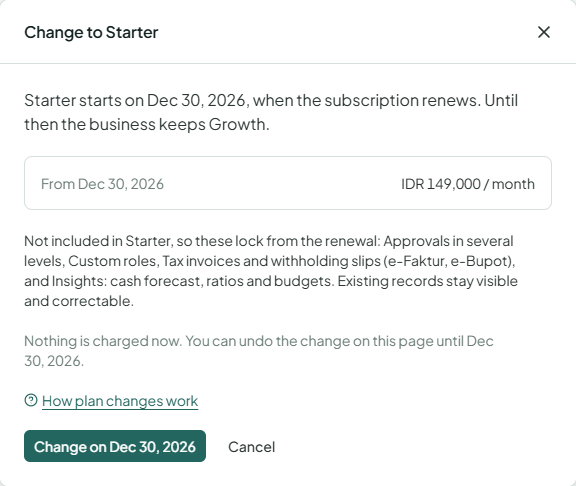
A scheduled change shows under Subscription with the date. Choose Undo the change (or Keep … on your current plan) any time before the renewal. The renewal invoice and its email already use the new plan, and the email also lists what will lock. Features the new plan doesn't include lock from the renewal; existing records stay visible and correctable.
Renewals
With a saved payment method, renewals are charged to it automatically where the method allows. Without one, each renewal arrives as an invoice by email with a Pay now link. If a plan's price or the tax on it rises, you get an email at least 30 days before your renewals cost more, and the billing page shows the new amount, taxes included, with the date it applies. If a renewal stays unpaid, members lose edit access a few days after the period ends, and then the business moves to Free (see Read-only mode).
Usage and limits
Usage shows what the business uses of its plan's limits: invoices and bills posted this month, storage, users, and active registers and warehouses. A bar turns amber from 80% of a limit, and the owner sees a reminder on the business's home page; at 100% it turns red.
At a limit, only new records of that kind wait. Nothing is deleted or hidden, and corrections (voids, credit and debit notes) always work:
- Invoices and bills a month (Free: 50 sales invoices and vendor bills together). Past the limit, new ones stay drafts until the count starts again on the 1st of next month (the date shows under the bar), or post them after changing the plan.
- Storage: new files can't be uploaded; stored files stay available. Remove files you don't need, or add storage under Add-ons.
- Users, registers and warehouses: pause a member, deactivate a register or warehouse, or add room.
Choose Add room under Usage to go to the plans and add-ons.
Add-ons
On Starter and Growth you can add extra users or storage under Add-ons. Added units are charged now for the rest of the period. Fewer units take effect at the next period; until then you keep what you paid for.
Invoices and payment methods
Invoices lists every invoice, credit note and its status; View shows the lines and lets you pay an open one. Under Saved payment methods you can remove a method; renewals then arrive as invoices.
When we give back money you paid, you get a credit note for it, and an email that says how much went back. A refund of part of an invoice leaves the invoice paid and your plan unchanged; a refund of all of it ends the time the invoice paid for.
Cancel
Choose Cancel subscription. Everything stays as it is until the end of the paid period; then the business moves to Free. Nothing is deleted, and you can subscribe again any time. Changed your mind before the end? Choose Keep the subscription.
Prices and what each plan includes are on our pricing page.