
Returns on your vendors' tax invoices (purchase returns)
How a VAT-registered business (PKP) makes the return of a vendor's tax invoice in Coretax after a debit note: check the lines against Coretax, export, upload under Retur Pajak Masukan, submit, and record the vendor's answer in Adimone.
When you send goods back to a vendor, or a service you bought is cancelled, you post a debit note on the bill. The VAT on what went back has to come off the vendor's tax invoice too, and on this side you make the return yourself, in your own Coretax. Adimone writes the file Coretax imports, guides each step outside the app, and keeps the month each return counts in.
Before you start
You need a debit note posted on a bill whose vendor tax invoice is recorded (see Record your vendors' tax invoices), the vendor's tax ID (NPWP) on the vendor, and permission to record vendors' tax invoices. Your returns are under Input VAT, on the Returns tab, and each debit note shows its own under VAT returns.
Like a sale's return, a debit note makes a nota retur for goods sent back and a nota pembatalan for a cancelled service, one of each when it has both (PMK 81/2024, articles 288 and 289).
How a purchase return goes
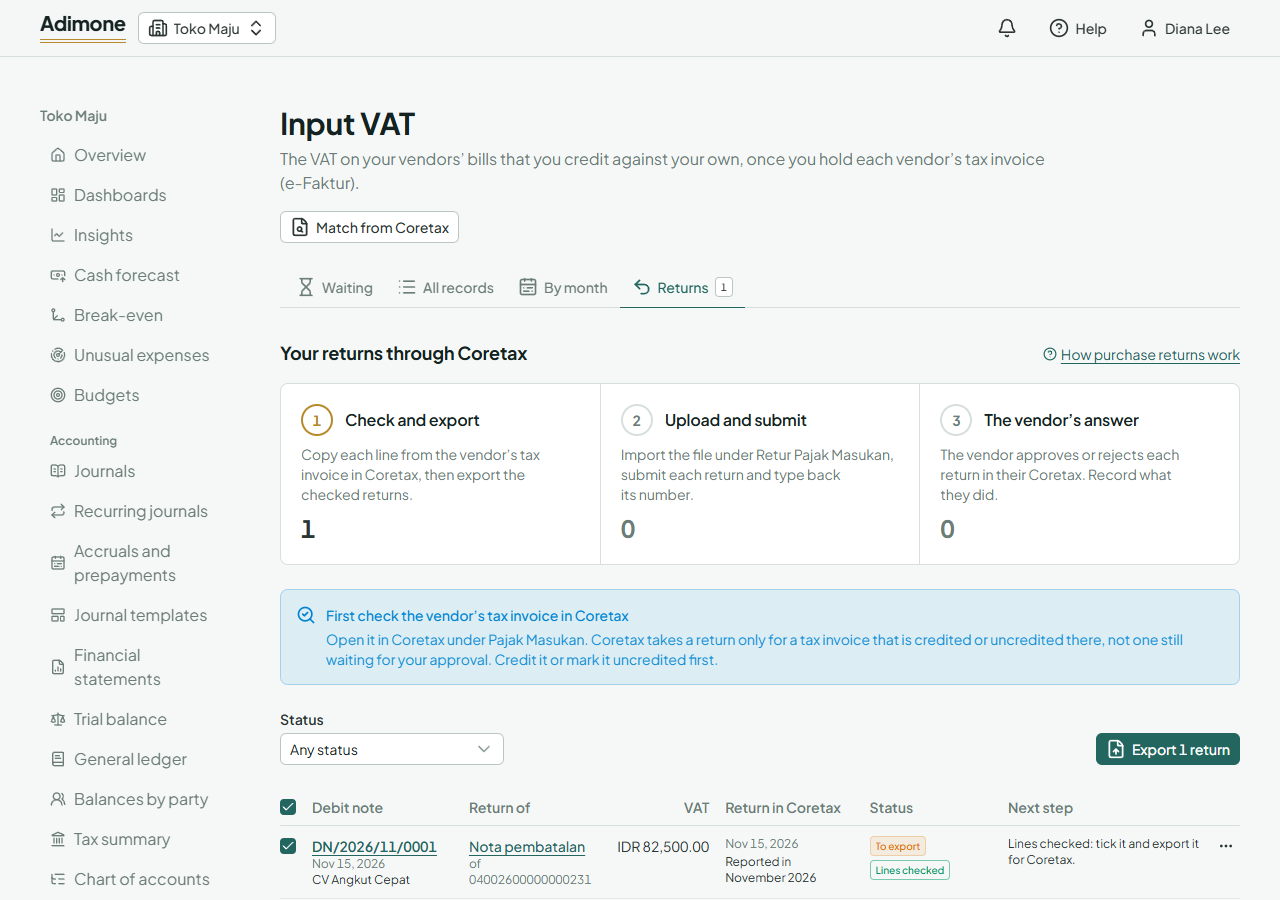
The Returns tab shows the trip in three steps, with how many returns wait at each; choose a number to list them:
- Check and export: check each return's lines against Coretax, then export them.
- Upload and submit: import the file in Coretax, submit each return and type its number back here.
- The vendor's answer: the vendor approves or rejects each return in their Coretax, and you record which.
Each return also says what comes next, with a button for it. The menu and the home page count the returns waiting on you.
Check the vendor invoice in Coretax first
Coretax makes a return only on a vendor tax invoice that is credited (dikreditkan) or uncredited (tidak dikreditkan) there. One still waiting for your approval in Pajak Masukan can't be returned. So before anything else, open the vendor's tax invoice in Coretax under e-Faktur, then Pajak Masukan, and credit it or mark it uncredited.
Uncredited input VAT is part of what the goods cost you: a debit note on such a bill then takes back cost, not input VAT. Adimone's books health flags bills whose tax invoice is past the three months it could be credited in.
Check the lines
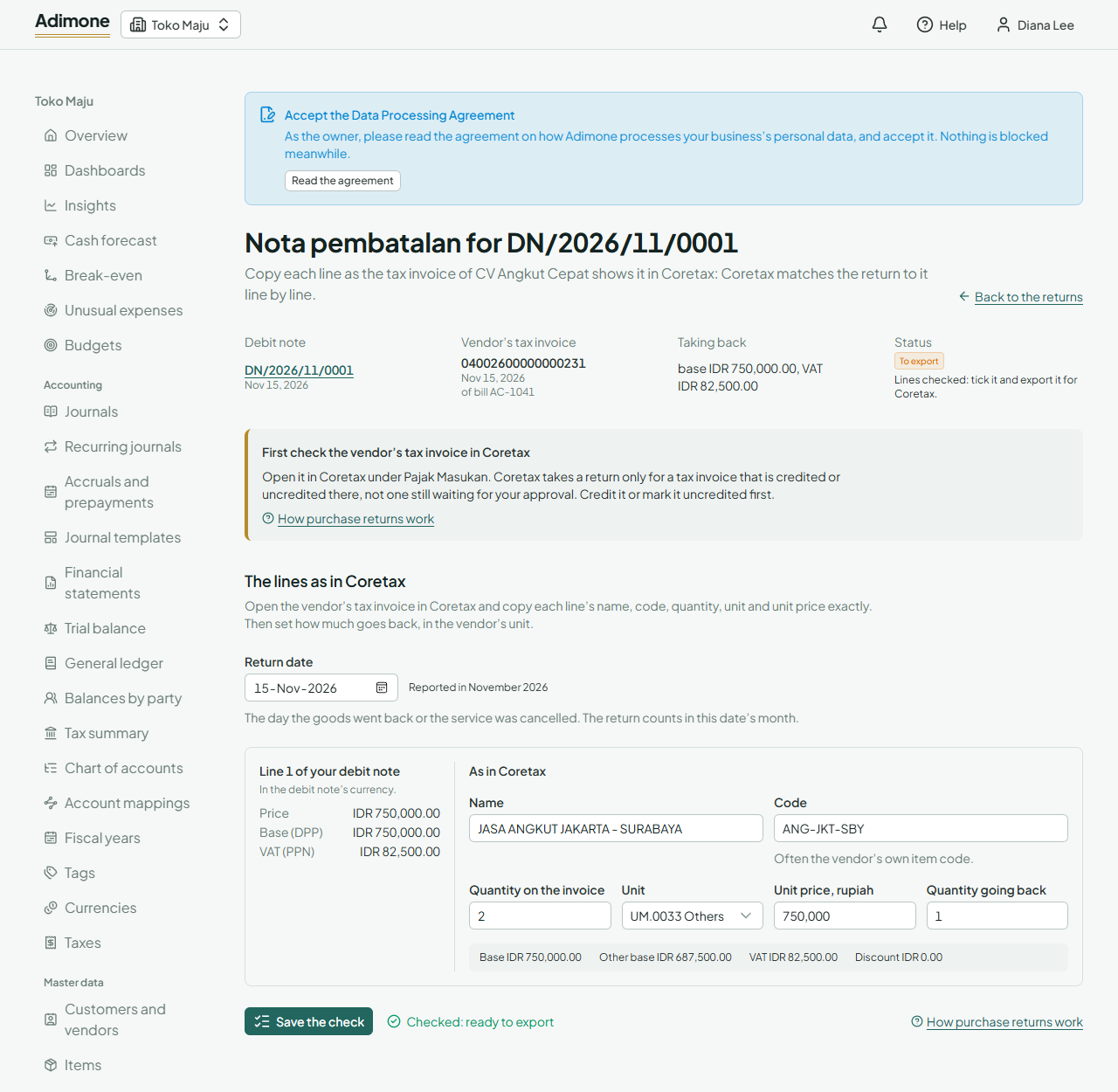
Coretax matches a return to the vendor's tax invoice line by line, so each line must be copied exactly as Coretax holds it, which is often not how your bill names it. Choose Check the lines on a return:
- Open the vendor's tax invoice in Coretax beside Adimone.
- For each line, copy its name, code (often the vendor's own item code), quantity on the invoice, unit and unit price in rupiah. Adimone fills in what it knows from your bill as a start.
- Set the quantity going back, in the vendor's unit.
- Set the return date: the day the goods went back or the service was cancelled. The return counts in that date's month, which may differ from the debit note's.
- Choose Save the check.
Your debit note's own price, base and VAT show beside each line. After saving, Adimone shows what the file will carry as Coretax computes it: the base, the other base (DPP nilai lain) where one applies, the VAT and the discount. A line whose base comes out above the vendor's price for the quantity going back is marked, since Coretax refuses it: correct the unit price or the quantity before exporting.
Export and upload
On the Returns tab, tick the checked returns and choose Export. Each export opens as a page of steps:
- Download the file: an XML file in Coretax's import format for returns.
- Upload it in Coretax: sign in with your business's NPWP, open e-Faktur, then Retur Pajak Masukan, choose Import Data and pick the file. Check each draft against the vendor's tax invoice.
A draft that came out wrong: delete it in Coretax before submitting it. Then choose Upload refused or draft deleted in Adimone: the return goes back to its line check, to be corrected and exported again. Do the same when Coretax refuses the file.
Submit and record the number
Submit each return in Coretax and sign it with your electronic signature. Coretax gives it a number. Type that number back on the export's page, or choose Record it submitted on the Returns tab. The return then waits for the vendor.
When the vendor answers
The vendor approves or rejects your return in their Coretax, and Coretax notifies you (Portal Saya, then Notifikasi Saya). Record what they did:
- Vendor approved: the return reduces your input VAT in the month of its return date, in that month's SPT Masa PPN (part B.2 or B.3).
- Vendor rejected: say why. Then correct the lines and export it again, or Drop the return if you won't make it again, for example when the vendor credits the amount another way.
When Coretax shows a submitted or approved return canceled while its debit note stands, choose Record it canceled in Coretax: it goes back to its line check, to be made again.
A voided debit note
Voiding a debit note before its return was exported cancels the return in Adimone. Once exported, the return becomes To cancel: delete the draft in Coretax if you haven't submitted it, or cancel the submitted return there, then choose Record it canceled in Coretax.