
File the monthly tax returns from the tax summary
How the tax summary gives the figures for each month's VAT and withholding returns, the days to pay and file by, and how to mark each return filed once Coretax has it.
Each month, a business in Indonesia pays and reports the taxes of the month before: the VAT return (SPT Masa PPN) once it is a VAT collector (PKP), and the withholding returns (SPT Masa PPh) for what it withheld from vendors. Both are filed in the tax office's Coretax. Tax summary, under Accounting, adds up the taxes your posted documents carry, gives a checklist for each month's returns and remembers which ones you filed. Paying and filing happen in Coretax, so this article walks through the whole round trip.
Before you start
- The Indonesia rule pack applied in Taxes: it knows the days each return is due. Another pack shows the summary without returns.
- For the VAT return, the day your business became a VAT collector in the tax settings: months before it have no VAT return.
- Your Coretax account. Seeing the summary needs access to the financial figures; marking a return filed needs the right to manage taxes.
Read the tax summary
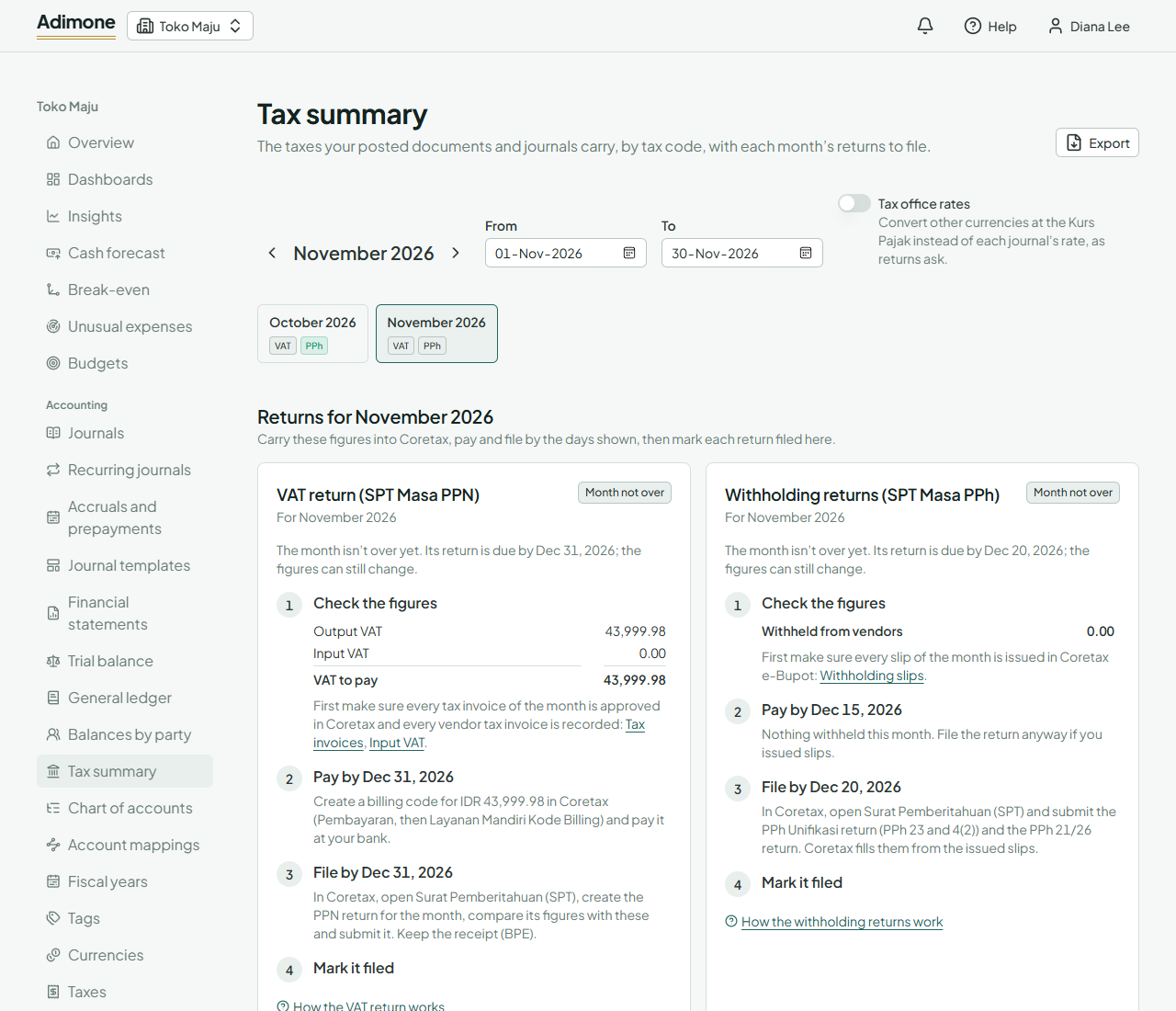
Tax summary opens on last month, the one you file now. Move a month back or ahead with the arrows, or type any period (up to about a year) in From and To. For each kind of tax (VAT, sales tax, withholding) it lists every tax code with the amount taxed and the tax, on sales or on purchases:
- Sales is output VAT on your invoices, less credit notes.
- Purchases is input VAT on bills, less debit notes; VAT you can't reclaim shows as part of the cost.
- Self-assessed is VAT on imported services (reverse charge), owed and reclaimed at once.
- Withholding on sales is what customers withheld from you (a prepaid tax); on purchases, what you withheld from vendors and owe the tax office.
Totals shows output and input VAT and the difference: VAT to pay, or VAT overpaid when input is larger. Amounts in another currency are converted at each journal's rate; switch on Tax office rates to use the Kurs Pajak instead, as returns do (every week involved then needs its rate in Kurs Pajak). Export gives the summary as a PDF, a spreadsheet or a CSV file for your tax consultant.
The month's checklist
When the period is one whole month, the summary starts with that month's returns, one checklist each, and above it the last six months with each return's state: Filed, Due on a day, or Overdue. Each checklist has four steps:
- Check the figures: the amounts to carry into Coretax, with links to the documents that must be finished first.
- Pay by the payment day: create a billing code in Coretax and pay it at your bank.
- File by the filing day: submit the return in Coretax.
- Mark it filed here, with the day and the receipt number.
A month that isn't over yet shows its checklist without the last step, since its figures can still change. While a return is due within a week or overdue, the home page and the Tax summary menu item say so.
The VAT return
The VAT of a month is paid and filed by the end of the next month.
- In Tax invoices, make sure every invoice of the month has its tax invoice approved in Coretax (see e-Faktur), and in Input VAT that every vendor tax invoice you claim this month is recorded (see Input VAT). Coretax builds the return from these.
- If the checklist shows VAT to pay, create a billing code in Coretax (Pembayaran, then Layanan Mandiri Kode Billing) for that amount and pay it at your bank. When input VAT is larger, there is nothing to pay: the overpaid VAT goes in the return, carried to the next month or claimed back.
- In Coretax, open Surat Pemberitahuan (SPT), create the PPN return for the month and compare its output and input VAT with the checklist. If they differ, a tax invoice is usually missing or not yet approved on one side. Returns count in the month of their own date: the checklist says how many count in the month, and the tax summary lists them under Returns in this period (see Which month a return counts in). Submit the return and keep its receipt (BPE).
- Back in Adimone, click Mark filed, enter the day Coretax accepted it and, if you like, the BPE number.
The withholding returns
Tax withheld from vendors is paid by the 15th of the next month and its returns filed within 20 days after the month.
- In Withholding slips, make sure every slip of the month is issued in Coretax e-Bupot (see e-Bupot): the returns are built from the issued slips.
- Create a billing code in Coretax for each kind of tax withheld (PPh 21, PPh 23, PPh 4(2)) and pay them. The checklist shows the total withheld and each code's part.
- In Coretax, open Surat Pemberitahuan (SPT) and submit the PPh Unifikasi return (PPh 23 and 4(2)) and the PPh 21/26 return. Coretax fills them from the slips; check the totals against the checklist.
- Click Mark filed in Adimone, with the day and the BPE number.
Correct a filed marker
Marked the wrong return, or the wrong day? Click Remove filed marker on its checklist and mark it again. The marker is only a note for you and your team; a return corrected in Coretax (pembetulan) needs no change here, though you may put its BPE number in a new marker.
When the figures change after filing
A document posted, corrected or voided in a filed month changes that month's summary. Corrections in Adimone are reversals dated today, so most of them land in the current month. If a filed month's figures do change, file a correction of that return in Coretax, and update the receipt number on its marker.