
Journals
Post entries by hand, save drafts, reverse a journal, and let an accrual reverse itself.
A journal is one entry in your books: two or more lines whose debits equal their credits. Sales, purchases and payments will post their own journals; you post journals by hand for everything else, such as opening balances, accruals, depreciation or corrections.
Before your first journal, the books need a chart of accounts, a base currency and a fiscal year that covers the date.
Post a journal
- Open Journals and choose New journal.
- Enter the Date and, if it isn't in your base currency, the Currency. Add a Description that says what the entry is for.
- For each line, pick the Account and type the amount under Debit or Credit. A line takes one side only. Where a line needs its own text, add a Line note; a line without one shows the entry's description in the reports. Add tags where they help.
- Watch the totals at the foot: Balanced appears, and both totals are ruled off, once debits equal credits. Until then it says which side is short and by how much. On a line you leave empty, Balance the entry here from its menu fills in the difference.
- Choose Post.
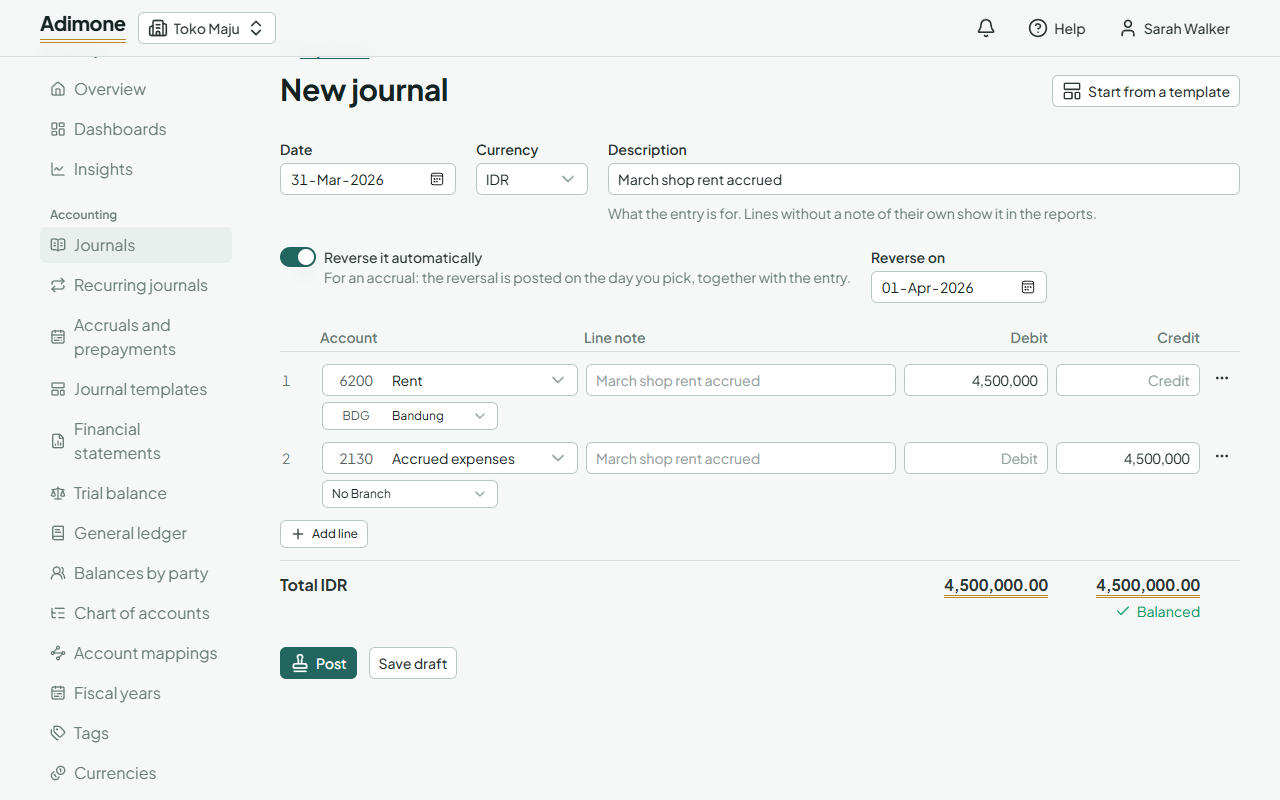
The journal gets its number (JE-2026-00001, counted per fiscal year without gaps) and can't be changed after that. To correct it, reverse it.
Amounts are typed without grouping, with . or , as the decimal point, and shown grouped the way your language writes numbers: 4,500,000.50 in English, 4.500.000,50 in Indonesian. See Type amounts and numbers.
For an entry you write often, choose Start from a template to fill the lines from a journal template.
Name a customer or vendor on a line
A line on a receivable or payable account can name the customer or vendor it belongs to: pick them under the account. The amount then counts in their balance, in balances by party and in the reports filtered to them. Use it for opening balances you bring over, a fee you charge a customer, or a correction to what a vendor is owed.
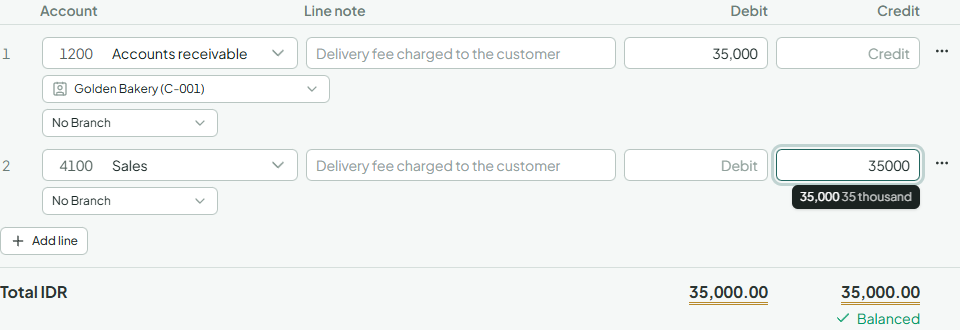
Only active customers and vendors can be picked. Lines on other accounts take none.
Save a draft
Choose Save draft instead of Post to finish later or to have someone else check it. A draft doesn't need to balance and isn't in the books yet. Open it from the list to change it, Post it, or Delete draft. Only people who can post journals see Post; others save drafts for them.
If the owner has turned on checks for manual journals, you may not post a journal you made or last changed. Choosing Post then keeps it as a draft and says why; choose Send to someone who can check it to email a person who may post it, with a note.
Reverse an accrual automatically
For an expense you owe at month end but pay next month, turn on Reverse it automatically and pick Reverse on, usually the first day of the next month. The reversal is posted together with the entry, so the next month's bill isn't counted twice.
Reverse a journal
- Open the posted journal and choose Reverse.
- Pick the Reversal date: the journal's own date, or a later day in a month that's still open.
- Choose Reverse journal.
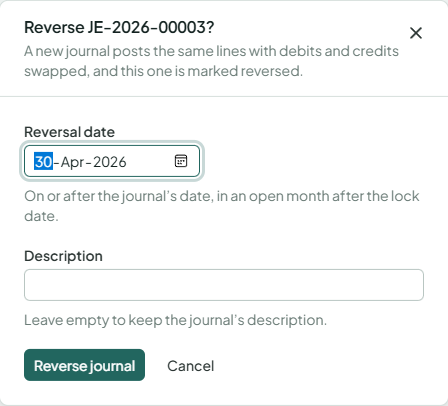
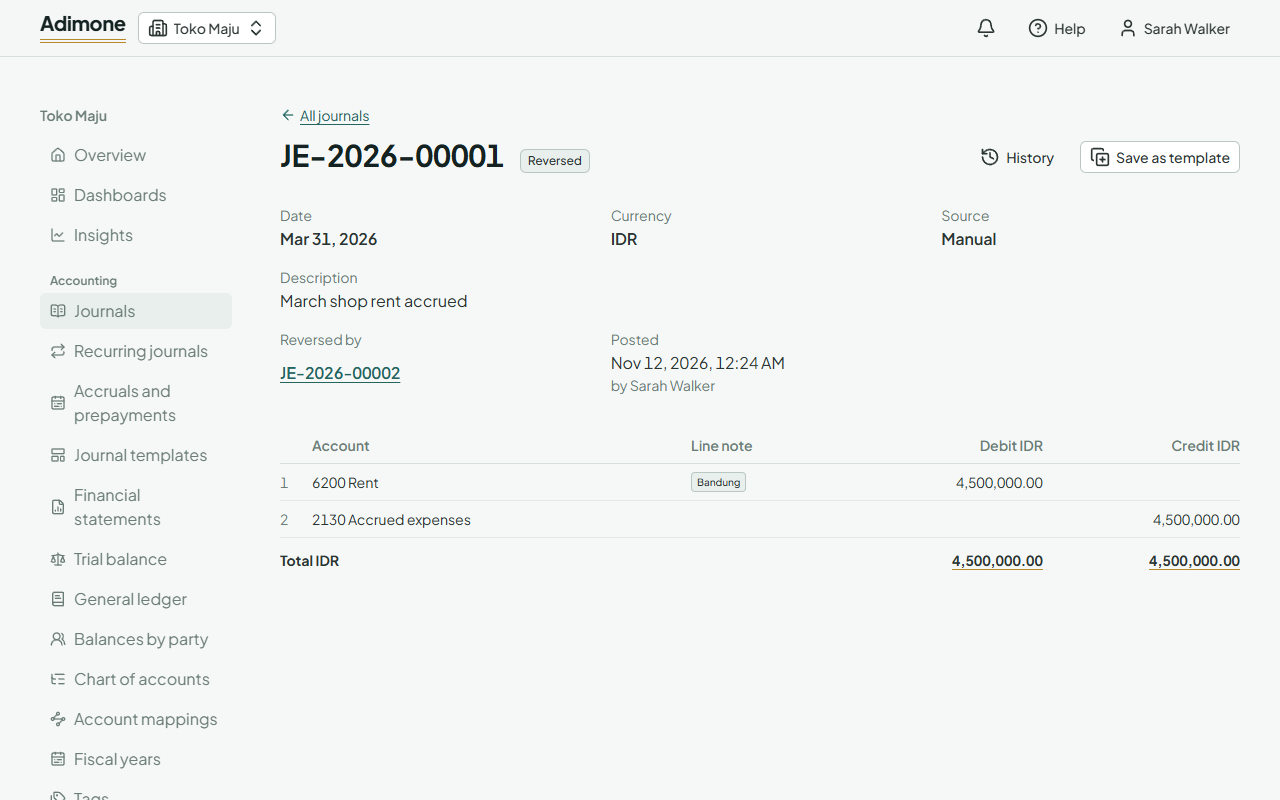
The reversal posts the same lines with debits and credits swapped. The two journals link to each other under Reversed by and Reverses. A journal posted by a document is corrected through that document, not here.
Find a journal
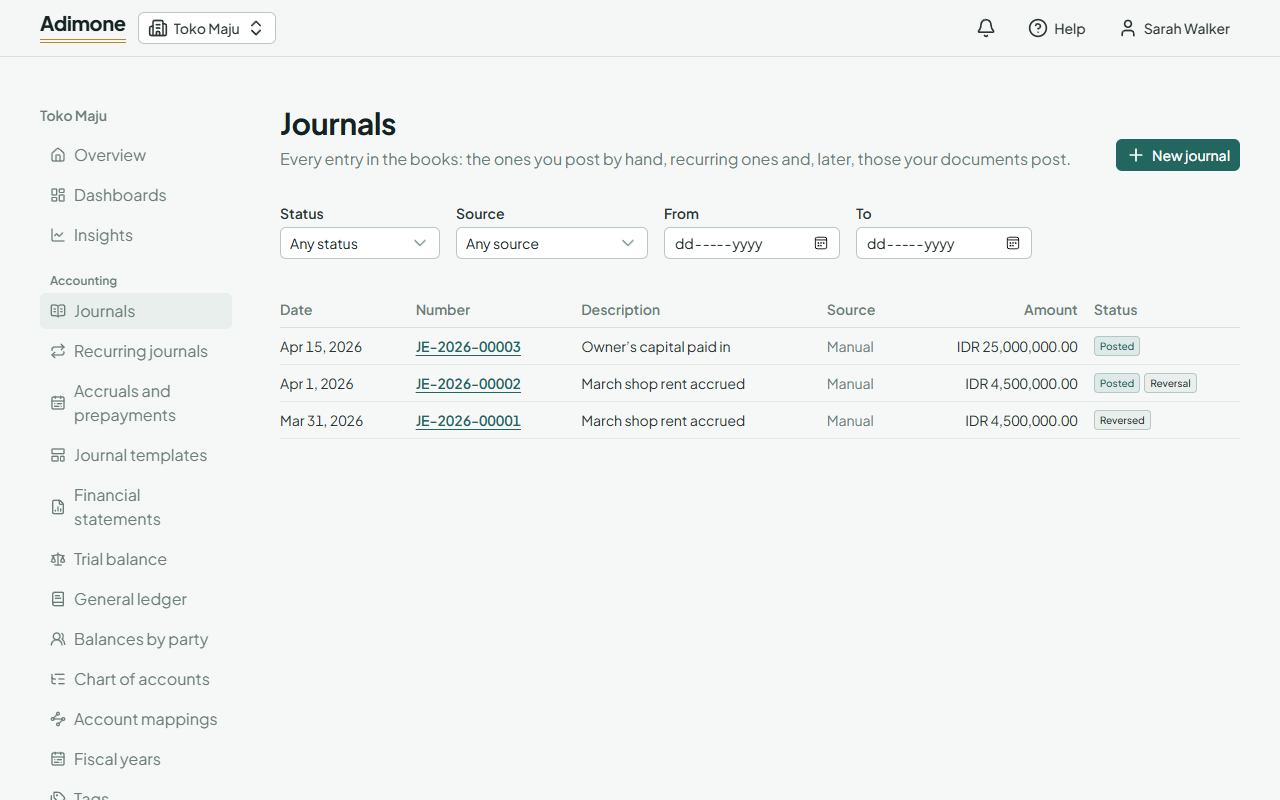
The list shows the latest journals first. Narrow it by Status, Source (Manual, or Brought forward for the entry that carries balances out of years past their retention) and dates. The filters stay in the address, so you can bookmark or share a filtered list.
When a journal is refused
The message says what to fix, and a line that's wrong is marked. The usual causes:
- The books are locked up to a date: pick a later date, or ask someone who manages fiscal years to move the lock date.
- The month is soft-closed: only people who manage fiscal years can post into it.
- No fiscal year covers the date: add the year first.
- No rate for a foreign currency on that date: enter one under Currencies.