
Enter the weekly Kurs Pajak
Where the tax office's weekly exchange rate is published, when you need it, and how to enter it so tax invoices, input VAT and duty stamps in another currency can go ahead.
Indonesia's tax office converts amounts in other currencies at its own exchange rate, the Kurs Pajak, set each week by a decree of the Finance Minister (Keputusan Menteri Keuangan, KMK). Tax invoices, the input VAT list and duty stamps in another currency use the rate of their week, not your own exchange rates. The rates come from outside Adimone, so you enter them: this article walks through it.
When you need a rate
Only when a document with tax is in a currency other than rupiah:
- a sales invoice whose tax invoice you export for Coretax (see Issue tax invoices);
- a vendor's tax invoice in another currency, for the input VAT list (see Input VAT);
- a document that owes a duty stamp (see Mark where a meterai is due).
A rupiah business that never invoices or buys in another currency never needs one.
How you are reminded
When a document needs a week's rate that isn't entered, Adimone tells you:
- the home page shows how many weeks need their Kurs Pajak, and for which currencies;
- Tax invoices and Input VAT show a warning with a way to the rates;
- an export or the input VAT list refused for a missing rate offers Open Kurs Pajak.
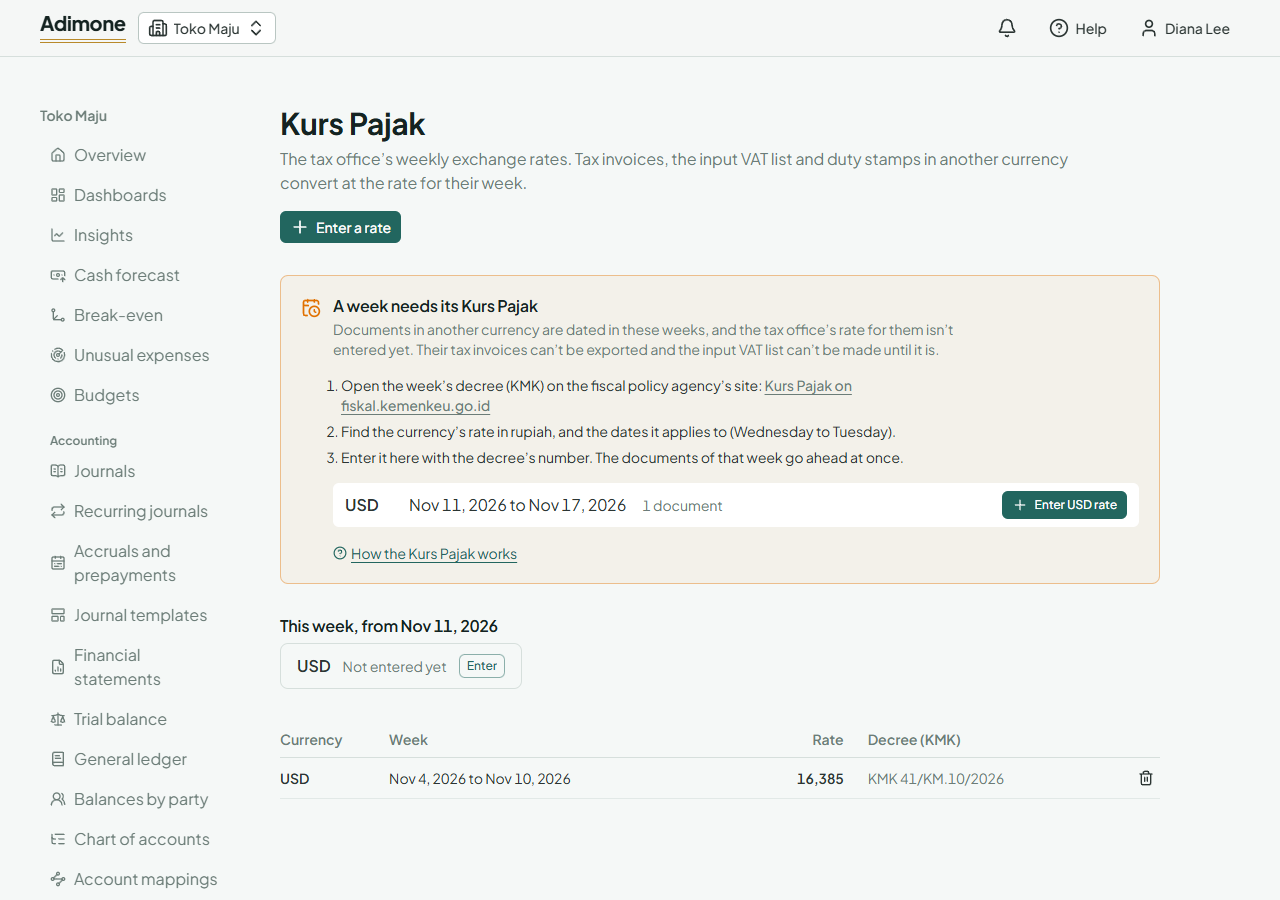
Kurs Pajak (open it from Taxes, or from any of these reminders) lists each week still needed, with its currency and how many documents wait for it, and this week's state for the currencies you use.
Enter the rate for a week
- Open the week's decree on the fiscal policy agency's site, fiskal.kemenkeu.go.id, under Kurs Pajak. Each decree runs from a Wednesday to the next Tuesday.
- Find your currency's rate in rupiah. The decree quotes the Japanese yen per 100 yen: divide that figure by 100.
- In Kurs Pajak, choose the week's button, such as Enter USD rate (or Enter a rate at the top). The currency and the week's first day are filled in.
- Type the rate and, if you like, the decree's number, so you can find it again.
- Choose Enter rate.
A rate applies for 7 days from its first day. The documents of that week go ahead at once: their tax invoices can be exported and the input VAT list made.
Correcting a rate
A rate can't be edited. If you typed a wrong one, delete it and enter it again. Exports already made keep their files; a file downloaded again, and the input VAT list, use the rates entered then.