
Keep your items
The goods and services you sell and buy, with their pictures, units, barcodes, default prices and accounts.
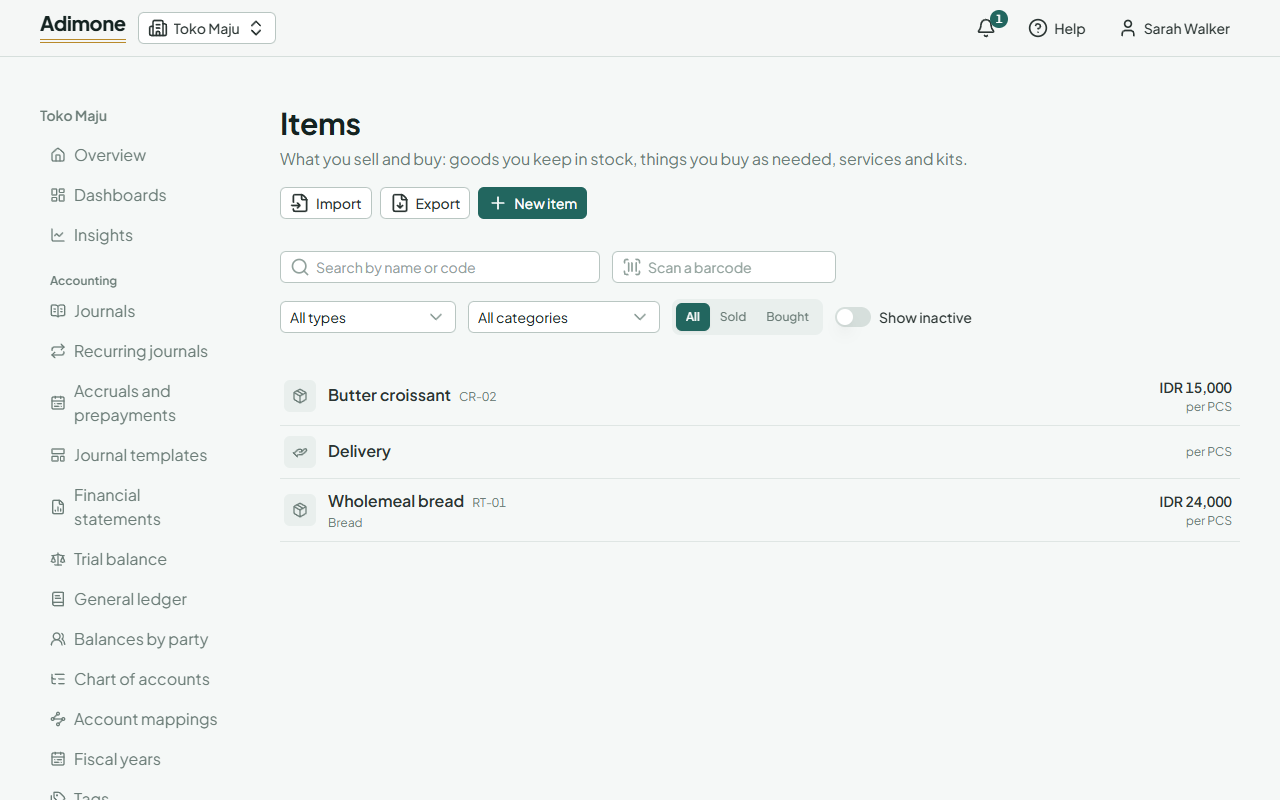
Items lists everything you sell and buy. Sales and purchase documents, the till and stock all pick items from here, so an item's name, units, barcodes and prices are set once.
Find an item
- Type part of a name or code in Search by name or code.
- To open the item a barcode belongs to, click Scan a barcode and scan it (or type it and press Enter). A box's barcode opens the item too.
- Narrow the list by Type, Category, Sold or Bought, and by your own fields with Filter by a field. Show inactive lists the items you deactivated.
Add an item
- Choose New item.
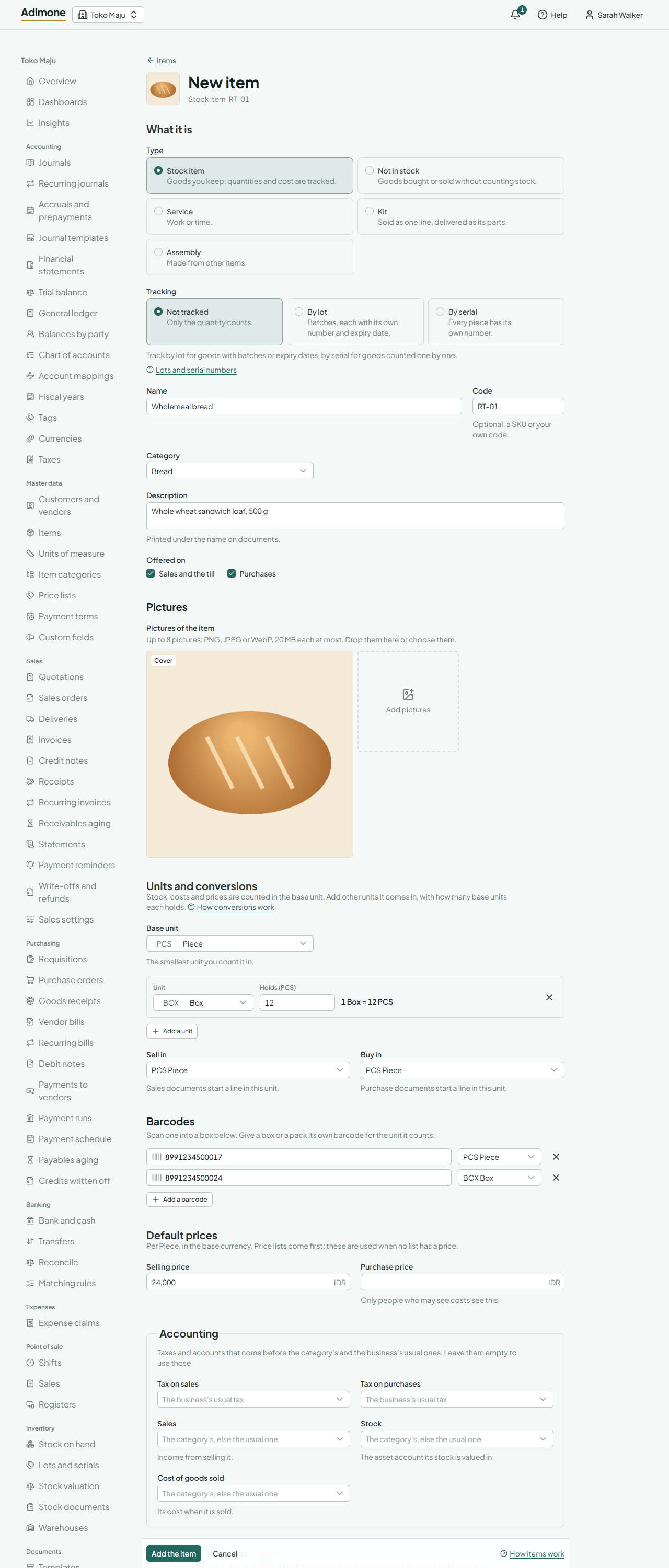
- Pick its Type:
| Type | Use it for |
|---|---|
| Stock item | Goods you keep: quantities and their cost are tracked. |
| Not in stock | Goods you buy or sell without counting them, like packaging you use up. |
| Service | Work or time: a repair, an hour of consulting. |
| Kit | A set sold as one line, like a gift hamper; delivering it takes its parts out of stock. |
| Assembly | Something you make from other items. |
Enter its Name, and a Code if you use SKUs. Pick a Category if you group items.
Tick where it is offered: Sales and the till, Purchases, or both.
Choose its Base unit, the smallest unit you count it in, and any other units it comes in (see Units of measure).
A stock item with lots or serial numbers is tracked By lot or By serial under Tracking (Lots and serial numbers).
Once a stock item has stock, it stays a stock item and keeps its base unit and tracking (Read your stock).
Enter its Selling price per base unit. Choose Add the item.
The Description is printed under the name on documents. Under Names in other languages, give the name and description in the other language, which documents written in it show (Names in other languages).
Pictures
Drop pictures on Pictures of the item, or click it to choose them: up to 8 PNG, JPEG or WebP files of 20 MB each. They upload as you add them, and the item keeps them when you save. The first picture is the Cover, which lists and the till show; use the arrows to change the order, or the cross to take one off. Personal workspaces keep no files, so pictures are for businesses.
Barcodes
Under Barcodes, choose Add a barcode and scan into the box; the scanner's Enter starts the next one. Each barcode counts a unit: the piece's own barcode counts one piece, a box's barcode counts a box. A barcode belongs to one item only.
Kits
A kit's page has Parts of the kit: find each item that goes into it and enter how many, in that item's base unit. A kit can't contain another kit, and needs at least one part.
Prices, taxes and accounts
The Selling price and Purchase price are defaults per base unit in your base currency; price lists come first when a customer or vendor has one. On price lists shows the item's prices on each list; choose one to change them, or Put it on a price list (Price lists). Only people who may see costs see and change the purchase price; the owner decides whether sales staff and cashiers may (Who sees purchase prices). Likewise only people who may see selling prices see and change the selling price, which leaves out Purchasing and Inventory. Saving an item keeps the prices you don't see.
People with the Accountant role also see Accounting: the item's default taxes and its own accounts. Leave them empty to use the category's, and then the business's usual ones. A VAT collector also gives the item its Goods or service code (e-Faktur) from Coretax's list (Goods and service codes).
Categories
Item categories groups items for lists and reports: drinks, spare parts, services. Categories are optional. Choose New category, enter its Name and, if you are an accountant, the accounts its items post to when they have none of their own. The ⋯ menu next to a category opens its items.
Change, deactivate or delete
Open the item, change it and choose Save changes. Documents already made keep what they copied.
- Deactivate keeps the item on its documents, kits and price lists, but it can't be picked for new ones. Reactivate brings it back.
- Delete removes an item no kit, price list or document uses. One that is in use stays; deactivate it instead.
History shows every change to the item, and lets you undo one (Change history and undo).
Export the list
Choose Export above the list to save every active item as an Excel workbook, a CSV file or a PDF. The columns are the import template's, so you can change the file and import it again (Export reports).