
Import customers, vendors and items
Bring your customers, vendors and items in from a spreadsheet, check every row before anything is saved, and undo an import.
Moving from another program or a spreadsheet? Import your customers, vendors and items instead of typing them in. Open Import data (in the menu, under Business), or choose Import on the customers and vendors list or the items list.
Nothing is saved while you work through an import: you match the columns, check the rows and fix what's wrong first, and the import saves all of its rows or none.
Importing needs the permission to import files of customers, vendors and items (the accountant has it) together with the permission to manage what you import.
Prepare the file
- Choose what you're importing, then Download the template: an Excel file headed by every column you can import, required ones highlighted, choices and yes/no in dropdowns, and a sheet that explains each column. A filled template matches its columns by itself.
- Your own file works too: a CSV or Excel (.xlsx) file with the column names in its first row, at most 5 MB, 5,000 rows and 200 columns. Only the first sheet of a workbook is read. An old Excel file (.xls) has to be saved as .xlsx or CSV first.
- Amounts can be written as you would (
1500000,1.500.000orRp 1.500.000); yes/no as yes, no, ya, tidak, true, false, 1 or 0. - A list exported from Adimone (customers and vendors, or items) imports again as it is.
Choose Choose a file. Uploading only reads the file.
Match the columns
Each field Adimone can fill is listed with the column of your file it reads. Columns are matched by their names, in English or Indonesian, or by a match you saved for a file with the same column names. Beside each field are the first values of its column, so a wrong match shows at once.
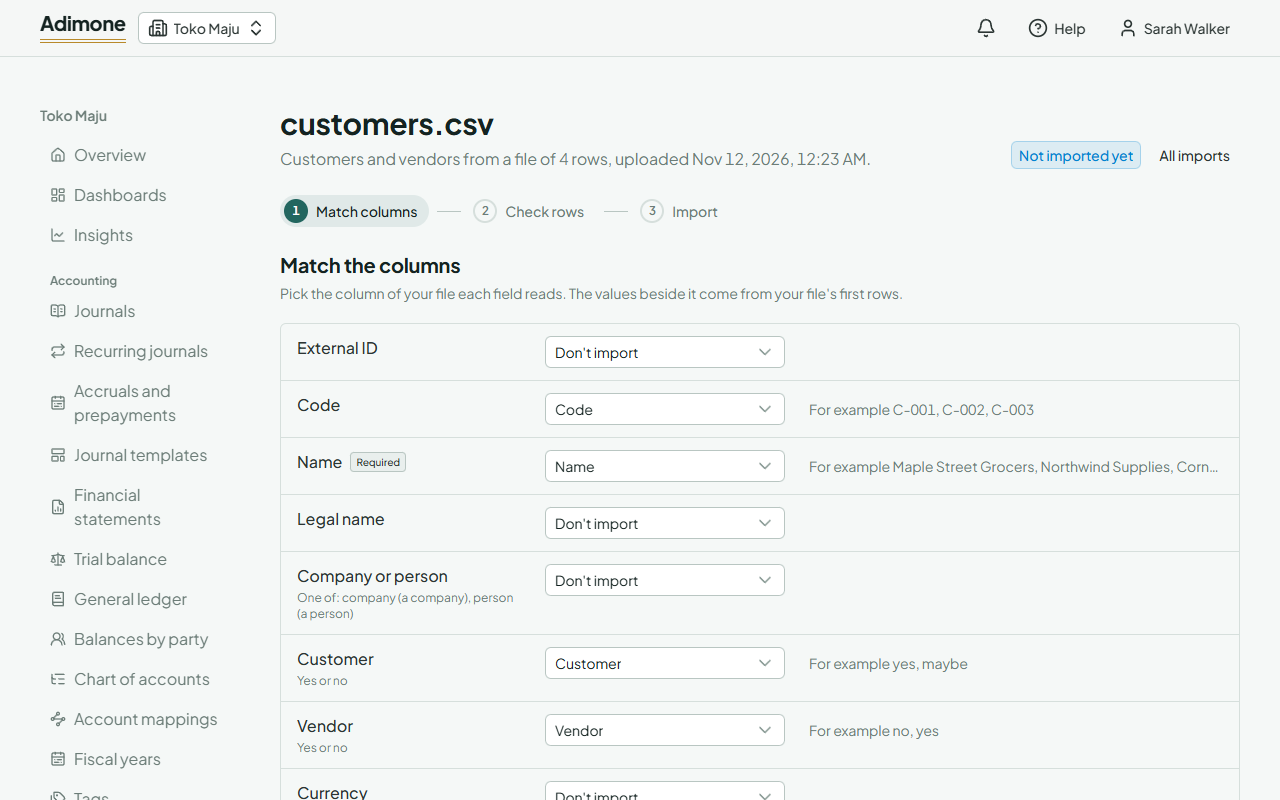
- Pick another column, or Don't import, for any field. Each column can be read by one field.
- Required fields must have a column before the rows are checked.
- Columns your file has that no field reads are listed under the fields; they're left out.
- To reuse this match for the next file, type a name and choose Save the match. Use a saved match applies one to this file. Saved matches are shared by everyone who imports in the business; delete them on the Import data page.
Choose Check the rows.
Check and fix the rows
Every row is checked exactly as the import will save it: required values, values a file may have only once (codes, barcodes), choices, amounts, codes already in use, and the rules of the record itself. The rows show as a sheet with their line in your file; a cell with a problem is marked with what's wrong.
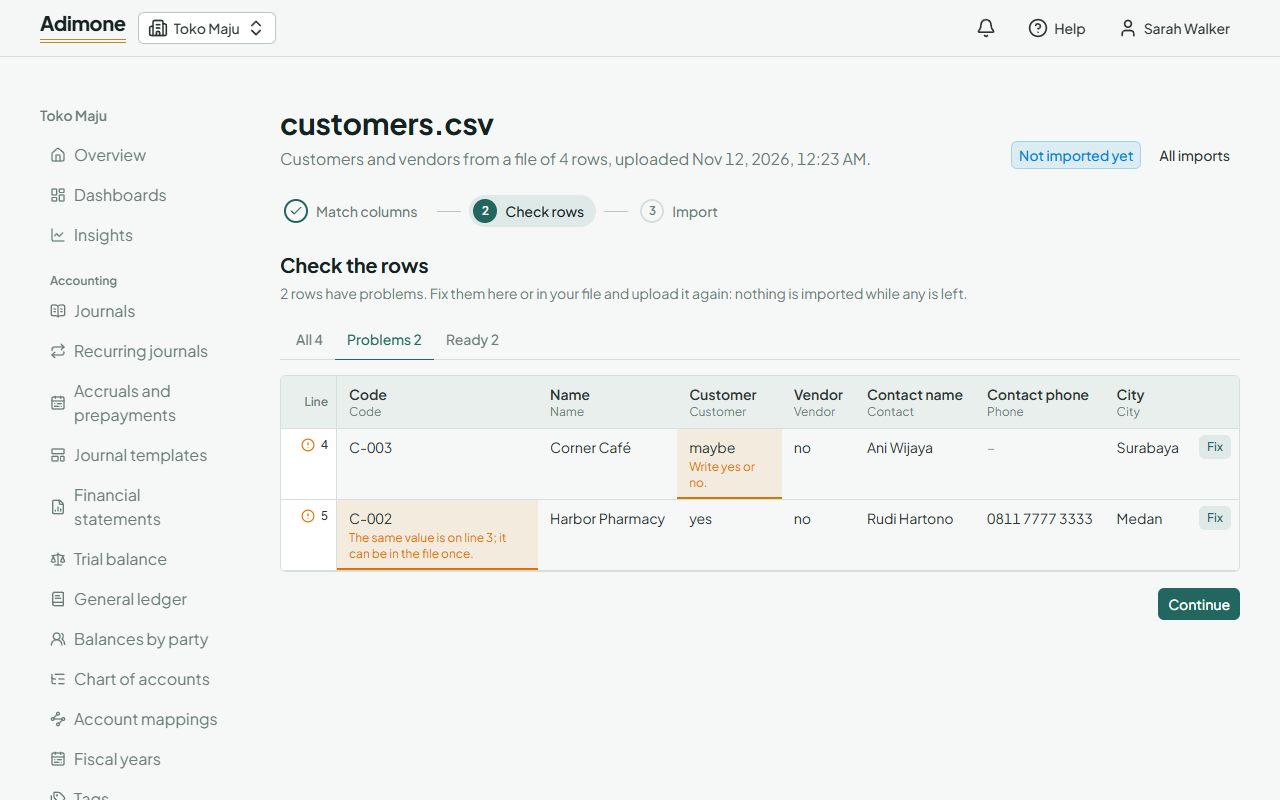
- Problems lists the rows to fix. Choose Fix on a row, correct its values and choose Save and check. Your file stays as it was.
- Or fix the file itself and upload it again.
- Already imported lists rows an earlier import made (by their External ID); they're skipped, so running a file again adds only what is new.
Import
The last step shows how many rows will be imported and what they make (customers, vendors, stock items, services…). The rows are checked once more as they're saved: if anything fails, nothing is imported and the rows show why. Choose Import.
Discard drops an import you don't want; nothing of it is saved. An import you leave unfinished is kept for 60 days.
Compare with your records
After an import, Compare checks each imported row against its record as it is now: how many still match, which changed since (each field with the file's value beside the current one) and which are gone. Imported rows are kept for this for 30 days.
Undo an import
Undo the import takes back everything the import made, as one change, while nothing uses its records yet (an invoice to an imported customer, for example). The change history shows the import too, and can redo it.