
Keep your customers and vendors
One record for each business or person you sell to or buy from, with their contacts, addresses and terms.
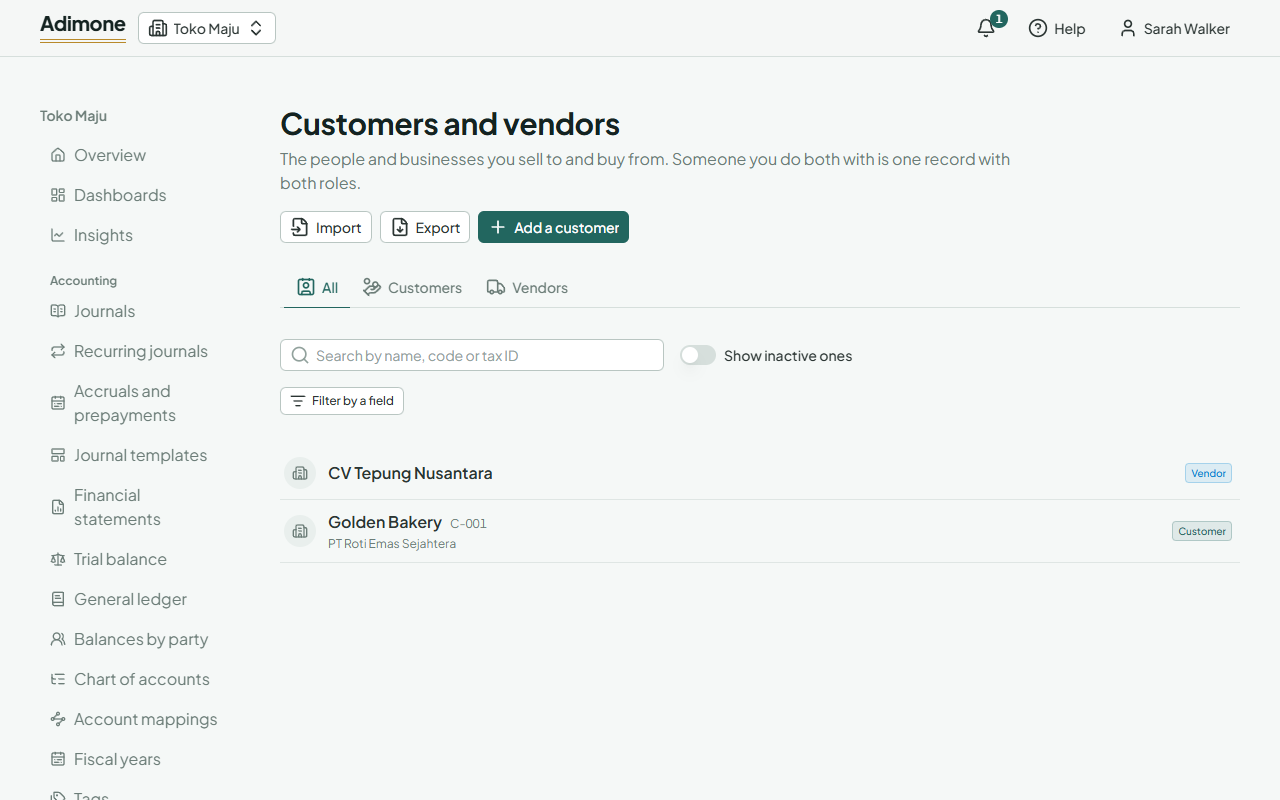
Customers and vendors lists everyone you sell to and buy from. Someone you do both with, say a supplier who also buys from you, is one record with both roles, so their details live in one place.
Their quotations, invoices and bills start with what you keep here: the currency, the language documents are written in, the payment term, the contact to email and the addresses.
Add a customer or vendor
- Open Customers and vendors and choose Add a customer (on the Vendors tab, Add a vendor).
- Pick Company or Person and enter the Name. A company's Registered name (like PT Sinar Jaya Abadi) is printed on tax documents when it differs from the name you use day to day.
- Under Roles, tick Customer, Vendor or both.
- Enter the Tax ID (NPWP, or NIK for a person) and tick Registered for VAT (PKP) if they are. Tax IDs are stored encrypted, and their sales documents print it under their billing address.
- Under Their documents, pick the Currency, the Document language, the payment terms on sales and on purchases and, if they get their own prices, a Price list on sales or on purchases (Price lists).
- Add Contact people and Addresses, fill in More about them if your business has custom fields, then choose Add.
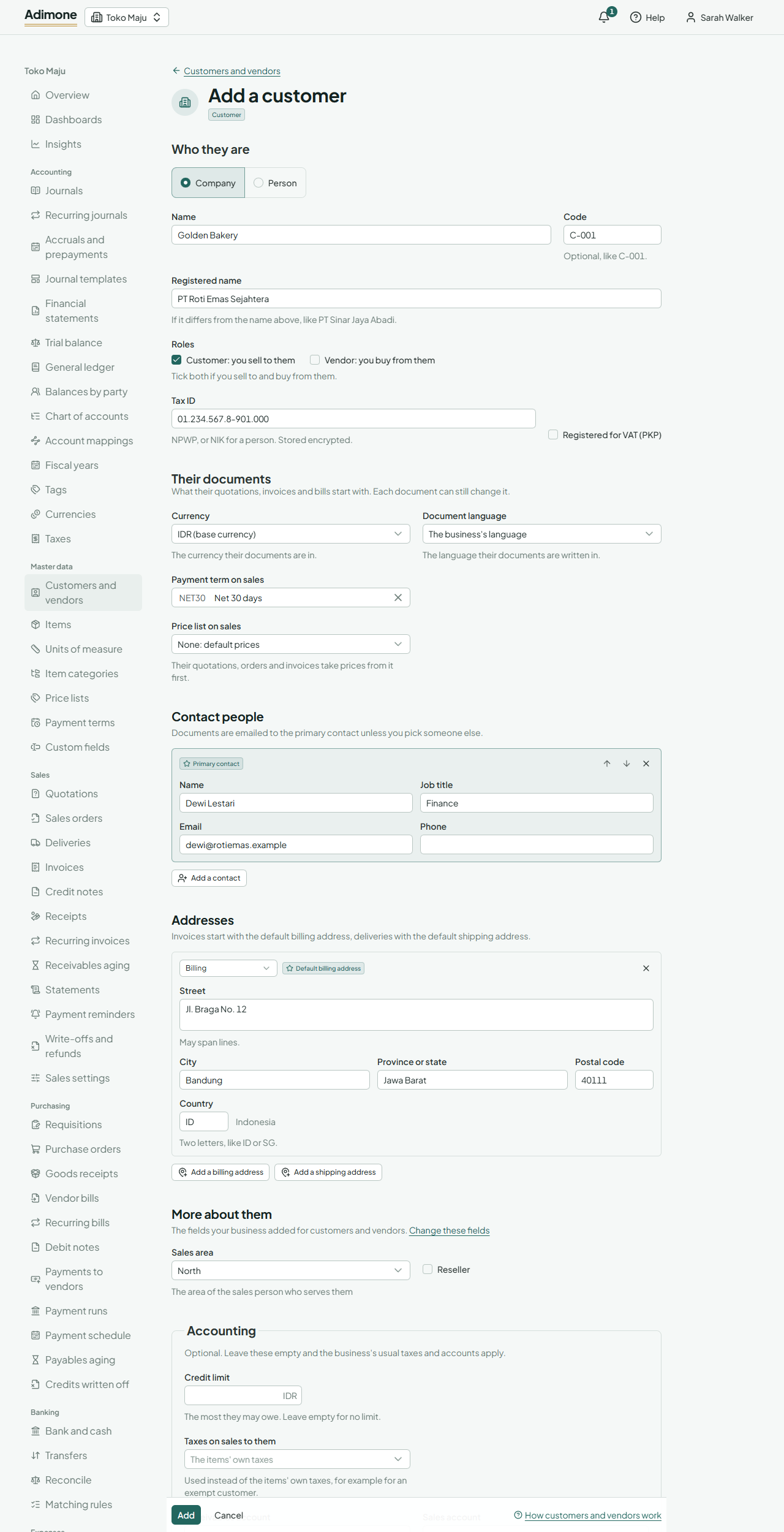
A Code is optional; give one if you're used to codes like C-001. It must be unique in the business.
Contacts and addresses
- One contact is the Primary contact: documents are emailed to them unless you pick someone else. Use Make primary to change it.
- Addresses are Billing or Shipping. Invoices start with the default billing address and deliveries with the default shipping address; Make default changes which one.
- Contact names, emails and phones and the street lines are stored encrypted.
Accounting details
People who manage accounting (the Accountant role) also see Accounting:
- Credit limit: the most a customer may owe. Leave it empty for no limit.
- Taxes on sales to them and Taxes on purchases from them: a tax code or group that replaces the items' own taxes, for an exempt customer or a vendor who withholds tax.
- Their own Receivables, Payables, Sales and Purchases accounts, used instead of the business's usual ones.
Leave these empty and the business's usual taxes and accounts apply.
Who sees them
Customers and vendors are seen by those whose job needs them: salespeople and cashiers see customers, purchasing sees vendors, and the accountant sees both (What each role sees). Each person's list and tabs show only the side they may see.
Adding or changing someone needs permission for every role they have. A salesperson adds and changes customers; someone who is a vendor too shows a salesperson their customer details only, and only someone who manages vendors as well can change them. Purchasing looks up vendors, and the accountant adds and changes them, because payments follow a vendor's details.
Find someone
Use the All, Customers and Vendors tabs and the search box, which finds part of a name or code. A tax ID is stored encrypted, so it is found only when you type it in full. Show inactive ones lists those you deactivated, and Filter by a field narrows the list by a custom field.
Change, deactivate or delete
Open someone from the list, change what you need and choose Save changes. Documents already made keep the details they copied.
- Deactivate keeps them on their documents but stops them from being picked for new ones. Reactivate brings them back.
- Delete removes them with their contacts and addresses, but only while no document names them.
Once they're saved, Document designs picks the designs their quotations, invoices or purchase orders use instead of the defaults (Design your documents).
Every change is in the record's History. To print their name differently on documents in another language, see Print names in another language.
Export the list
Choose Export above the list to save every active customer and vendor you can see as an Excel workbook, a CSV file or a PDF. The columns are the import template's, so you can change the file and import it again (Export reports).