
Add your own fields
Track what the standard fields don't cover, like a sales area, a brand or a project, on customers, vendors, items, sales and purchase documents, and filter lists by it.
Custom fields are your business's own fields on its records: a sales area or a reseller tick on customers and vendors, a brand or a warranty on items. They show on every record's page, and lists can filter by them. People who manage the business's setup (the Accountant role) add them under Custom fields; everyone else fills them in.
Add a field
Open Custom fields and pick the tab: Customers and vendors, Items, Sales documents or Purchase documents (then the kind of document under Fields of).
Choose Add a field, or start from one of the ideas on an empty tab.
Pick the Kind of value:
Kind Holds Text Any short text, up to 200 characters Choice list One of the choices you list, up to 50 Number A number, with the decimals you choose (0 to 6) Date A day on the calendar Checkbox Yes or no Enter the Label the form shows. The Key is made from it; imports and exports name the field by it.
Add a Hint if people need help filling it in, tick Required if no record should be saved without it, and give the label and hint in other languages under Names in other languages.
Check How it looks: it shows the field as people will fill it in, and you can try it. Then choose Add the field.
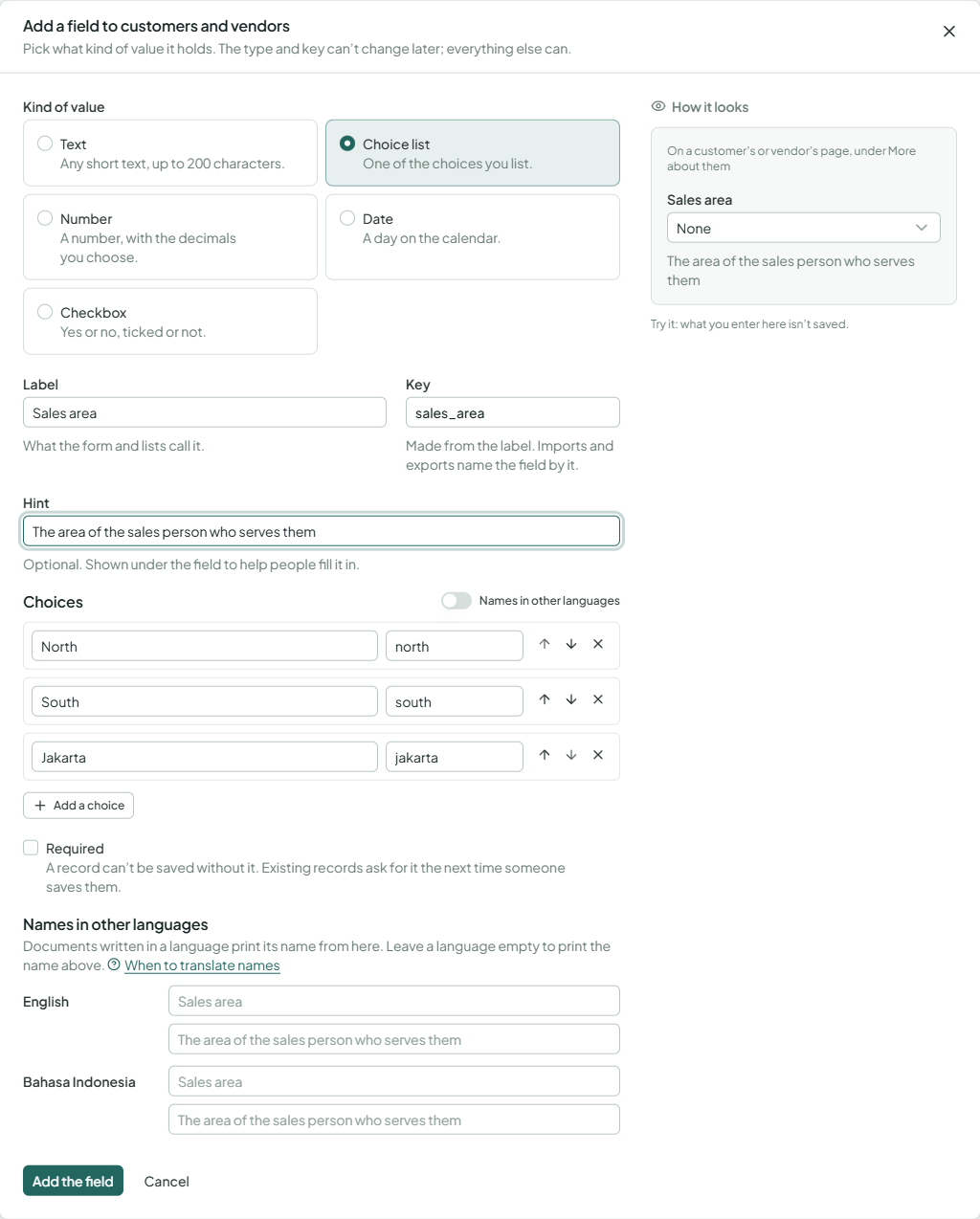
The kind of value and the key can't change once the field exists; everything else can. A kind of record has at most 30 fields.
Choices
A choice list needs at least one choice. Each choice has a label and a key made from it. Turn on Names in other languages to name the choices in English and Indonesian. A choice records hold can't be removed.
Required fields
A required field must be filled in when someone adds a record or saves one again. Records saved before it became required keep working until then.
Put them in order
Forms show the fields in the order of the list. Use the arrows next to a field to move it up or down.
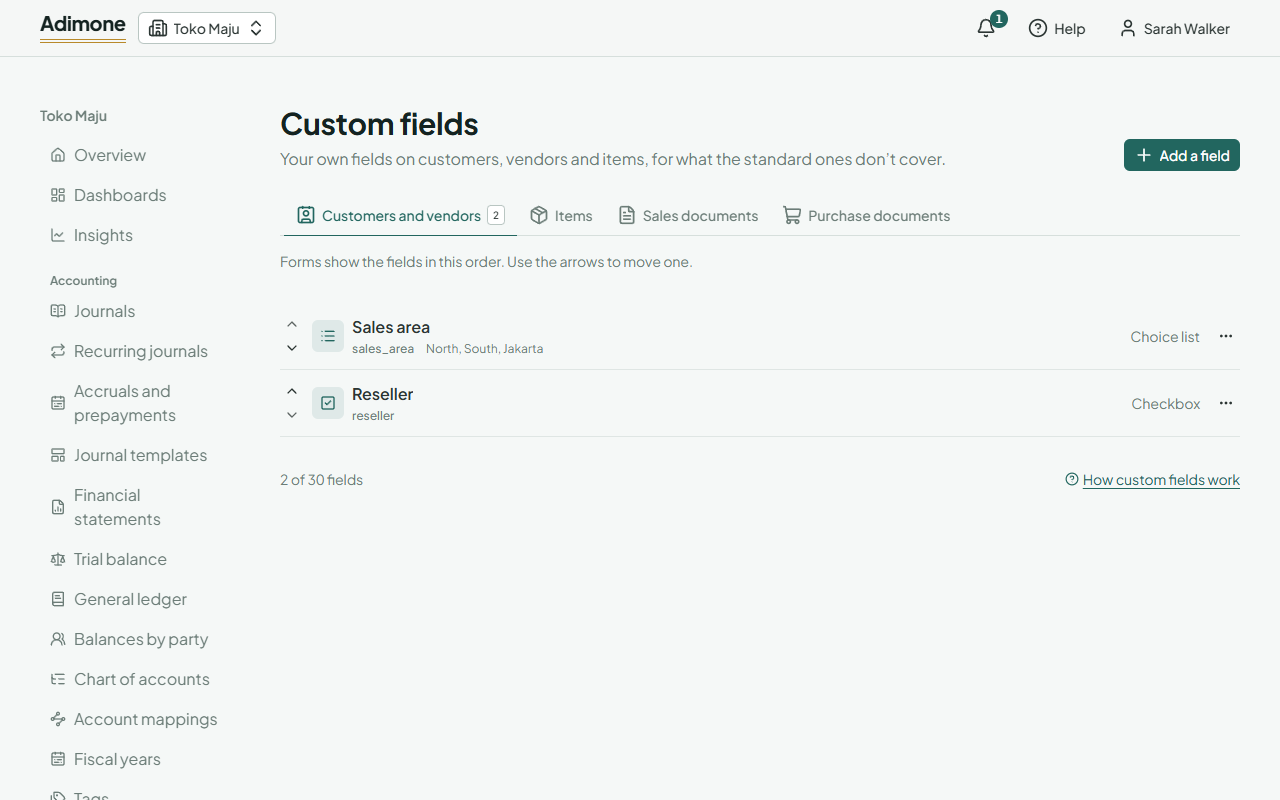
Fill them in and filter by them
A customer's or vendor's page shows the fields under More about them. On the list of customers and vendors, choose Filter by a field, pick the field and what to look for: part of a text, one of the choices, ticked or not, or a range of numbers or dates. Up to five filters apply at once; take one off with its ×.
Values of custom fields are stored as they are, not encrypted, so don't use them for ID numbers or bank details.
Fields on sales documents
Under Sales documents, each kind of document has its own fields: quotations, sales orders, deliveries, sales invoices and sales credit notes, plus Lines of sales documents for fields every line has (like a batch or a size).
- The document's editor shows its fields under the notes, and each line's fields in the line's settings.
- A document made from another (an order from a quotation, a copy) takes the values of the fields both kinds have.
- The fields print on the document. A document template can hide any of them, and the customer's tax ID too.
Fields on purchase documents
Under Purchase documents, requisitions and purchase orders each have their own fields, plus Lines of purchase documents for fields every line has. They work as on sales documents: an order made from a requisition, or a copy, takes the values of the fields both kinds have, and the fields print on the document.
Change, deactivate or delete
Choose a field to change it, or use the ⋯ menu next to it:
- Deactivate takes it off the forms; the records keep their values and get them back when you Reactivate it.
- Delete removes a field no record has a value for. Otherwise deactivate it.
Every change is in the field's History, and a record's own history shows the values it had.