
Set prices with price lists
Prices for a group of customers or from a vendor, in any currency you use, with cheaper prices for larger quantities and prices for a set period.
A price list holds your prices for a group of customers (wholesale, resellers, members) or what a vendor charges you. Give it to a customer or vendor, and their documents take prices from it before the item's default prices.
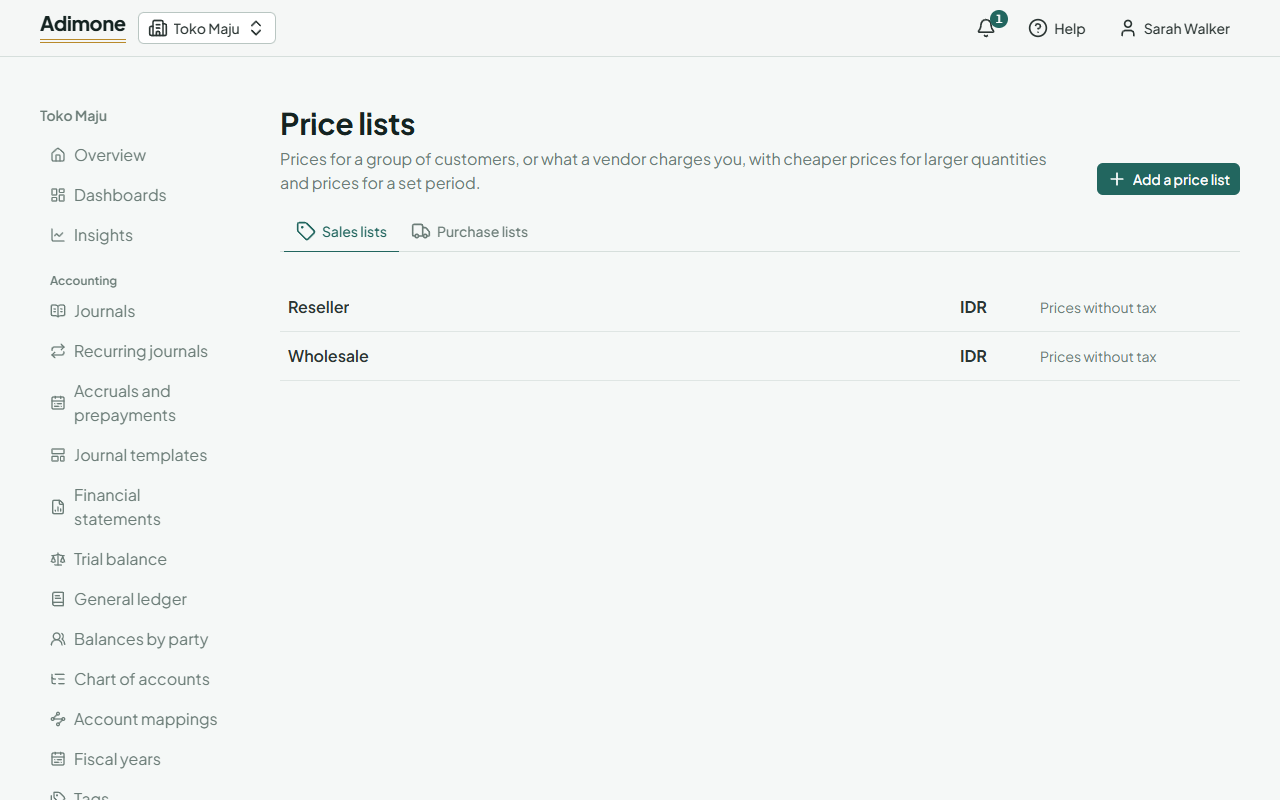
Add a price list
- In Master data, open Price lists and choose Add a price list.
- Enter a Name, like Wholesale.
- Choose whether it's used on Sales or Purchase. You see only the sides you may: sales lists with the permission to see selling prices, purchase lists with the permission to see purchase prices.
- Pick its Currency: a customer or vendor can only have a list in the currency they deal in.
- Choose Prices without tax or Prices include tax, then Add price list.
What a list is used on and its currency can't change later; its name, tax and notes can. A business can have up to 100 price lists. Adding and changing sales lists takes the permission to set prices, apart from editing items; purchase lists are kept by whoever sees purchase prices, such as Purchasing (What each role sees).
Put items on a list
On the list's page, choose an item under Put an item on the list. Enter its Price and choose Put on the list. Each row is one price:
| Column | What it means |
|---|---|
| Unit | The unit the price is for, when the item comes in more than one (a piece, a box). |
| From quantity | The price applies from this quantity on. Leave it empty for any quantity. |
| From, Until | The first and last day it applies. Leave them empty for always. |
| Price | Per one of the unit, in the list's currency. |
Choose an item on the list to change its prices, or Take off the list. The item's own page shows every list it's on under On price lists.
Quantity breaks and dated prices
Add a row for each price: a larger quantity, another unit or a set period. How it prices draws them as steps, cheaper as the quantity grows, with dated prices marked by their days.
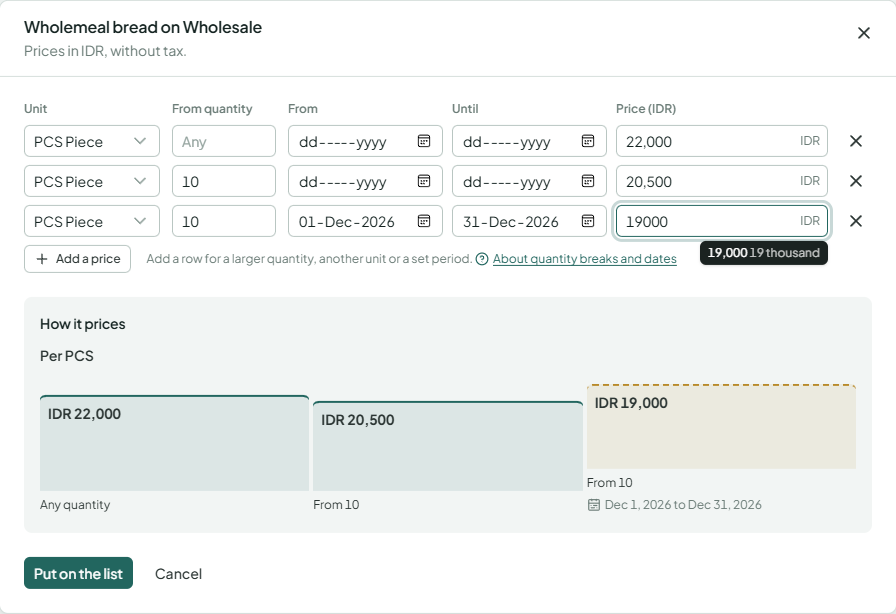
When a document asks for a price, the list gives:
- the price for the line's unit, valid on the document's date, with the largest From quantity not above the line's quantity; a dated price comes before one without dates;
- else the price of the base unit times how many base units the line's unit holds;
- else, in your base currency, the item's default price.
Two prices for the same unit and quantity can't both be without dates, and two dated ones can't share a day. A promotion is a dated row next to the usual price: from the first day of the promotion to its last.
Give a list to a customer or vendor
Open the customer or vendor and pick a Price list on sales or a Price list on purchases under Their documents. Only active lists of that side in their currency are offered. See Customers and vendors.
Deactivate or delete
- Deactivate keeps the list on its customers and vendors, but it gives no prices until you Reactivate it.
- Delete removes a list with its prices, while no customer or vendor has it.
History shows every change to the list, and lets you undo one (Change history and undo).