
Credit customers
Credit a posted invoice for goods the customer returns or for a lower price, choose what comes back into stock, post the credit note, and void it.
A credit note takes money off a posted invoice. Use it when the customer returns goods, or when you lower the price of goods they keep (an allowance). Posting it reverses that part of the sale: the customer's receivable goes down, and the revenue and taxes come off. Returned goods come back into stock at what they cost when they left.
To cancel an invoice issued by mistake, void the invoice instead. A credit note is for a real sale you correct afterwards.
Start a credit note
- Open the posted invoice and choose Credit.
- Pick the Credit note date: the day the sale is reversed in the books, the invoice's day or later. The taxes always follow the invoice's rates.
- Give the Reason, such as "two cartons returned damaged". The owner's review list shows it.
- Choose Start the credit note. A draft opens with everything of the invoice not credited yet, its goods coming back.
Choose what is credited
Narrow the draft to what really happened. Each line credits a line of the invoice and keeps its item, unit, discount and taxes. Under the item, the line says what the invoice billed and how much is left to credit.
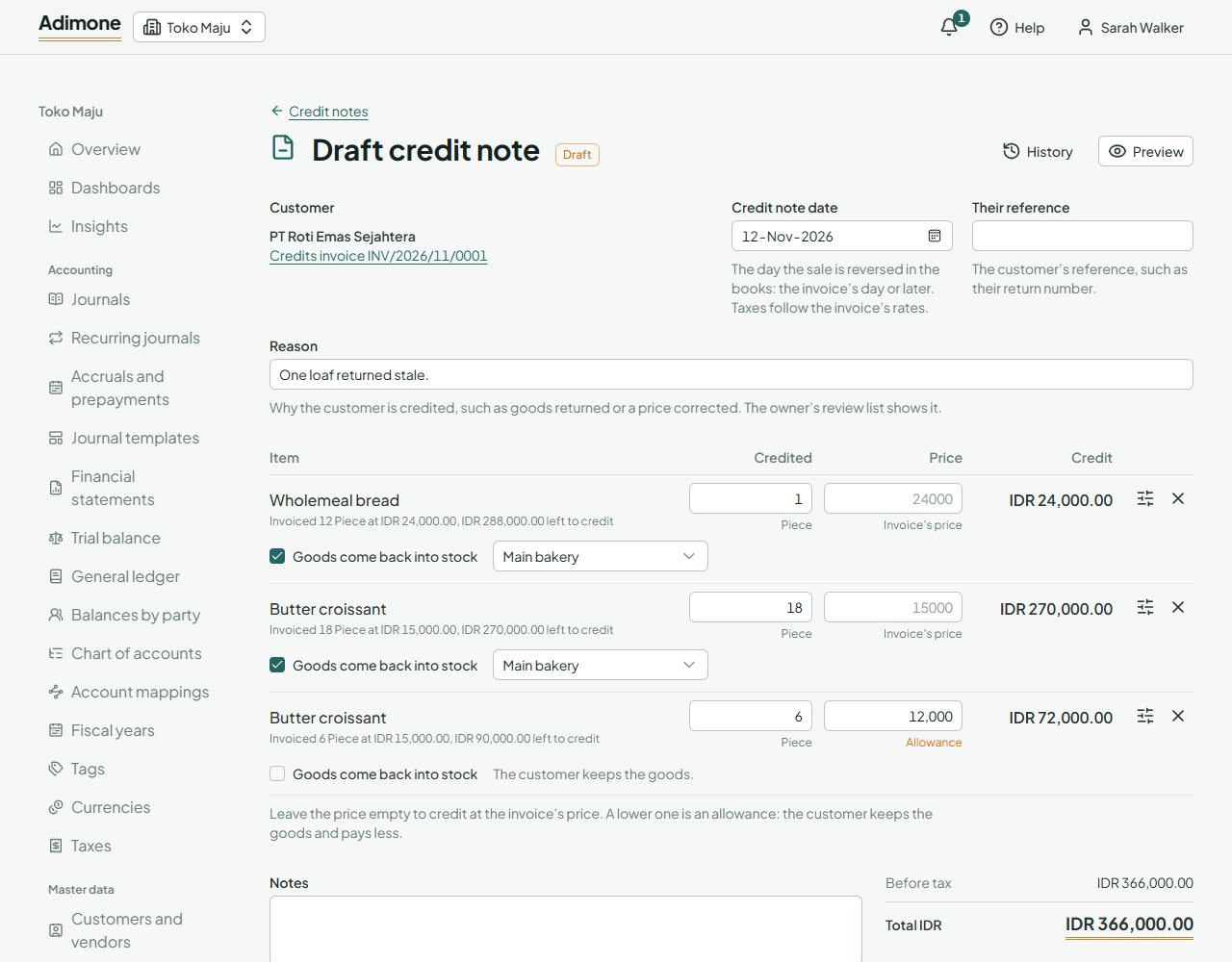
- Credited is the quantity, in the invoice line's unit. It can't be more than the invoice billed.
- Price is empty to credit at the invoice's price. Type a lower price for an allowance: the customer keeps the goods and pays less. Clear Goods come back into stock for such a line.
- Goods come back into stock is ticked for goods kept in stock. They come back where they left, or into the warehouse you pick. Goods tracked by lot or serial number need the number they come back in.
- Remove the lines you don't credit. Add a line of the invoice puts one back.
- Open a line's options to add a note printed under it, or its custom fields.
Choose Save draft to finish later, or Post credit note.
Post the credit note
Post credit note reverses that part of the sale on its date, takes returned goods back into stock and issues the credit note with its number. Only people with the post permission see the button. Others save the draft for them to check. If the owner chose that someone else must check credit notes, the person who wrote the draft can't post it.
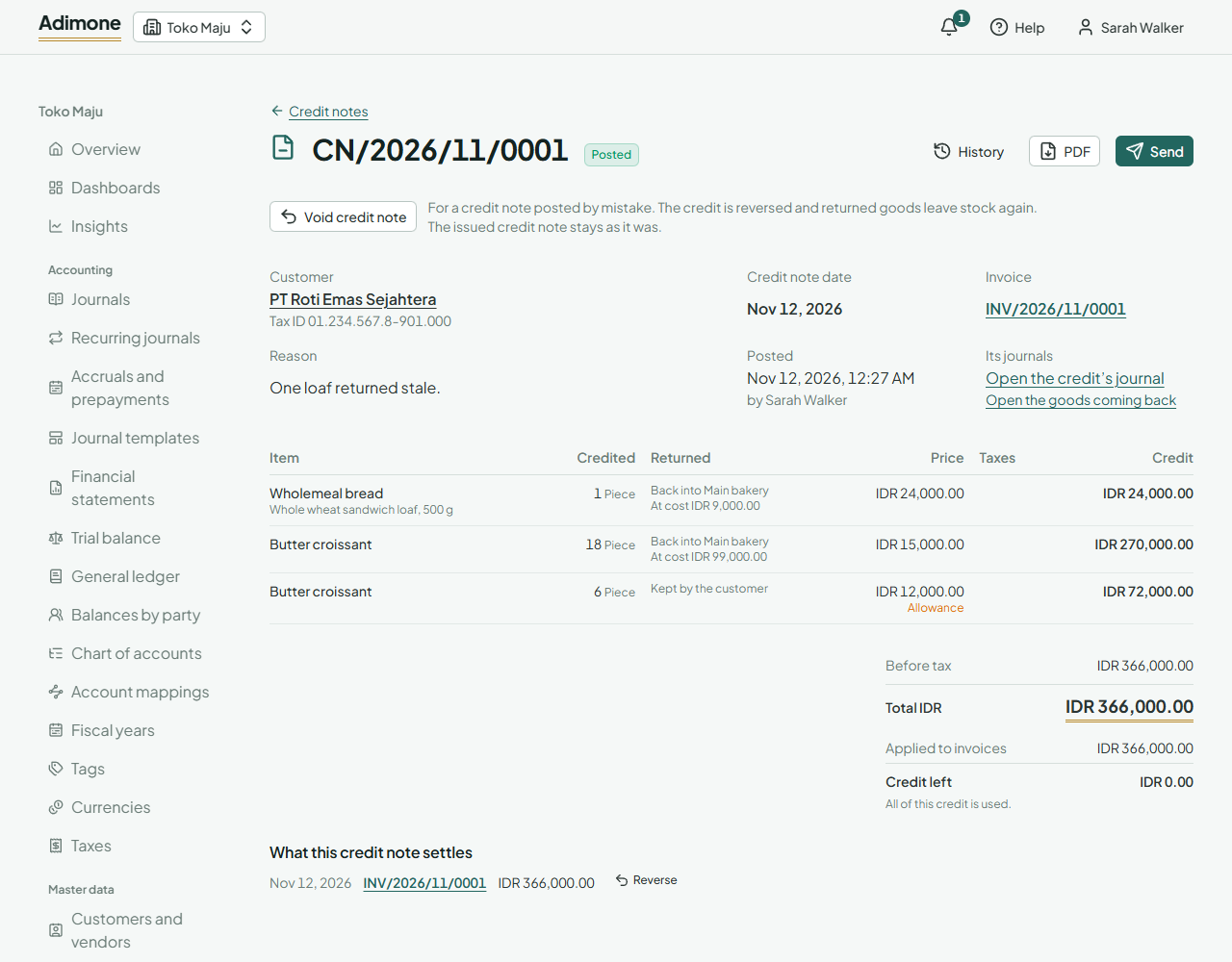
- PDF opens the issued credit note; Send emails it or makes a link (Send documents to customers).
- The invoice shows how much of each line was credited and returned, and lists its credit notes. What the customer still owes goes down.
- Those who see the ledger find the credit's journal and, for returned goods, the goods coming back. The journal links back to the credit note.
- Credit notes in Sales lists them all. Tick posted ones to export their PDFs together.
Apply the credit to other invoices
Posting applies the credit to its own invoice first, as far as the invoice still owes. When the invoice was already paid, the rest is the customer's credit: the credit note shows what was Applied to invoices and the Credit left. Choose Apply to invoices to settle the customer's other open invoices with it, the same way as a receipt's credit, or Refund it to pay the customer back (Pay a customer's credit back).
Void a credit note
For a credit note posted by mistake, open it and choose Void credit note. Pick the day (its own or later) and give the reason. The credit is reversed, returned goods leave stock again, and the invoice counts them as not credited. The issued credit note stays as it was.
An invoice that a posted credit note credits can't be voided. Void the credit note first. A credit note applied to other invoices can't be voided either: reverse those payments first.