
Send customer statements
Show a customer everything they were billed and paid over a period and what they still owe, as a numbered PDF you can email.
A statement lists a customer's invoices, credit notes, payments, write-offs and refunds over a period, with the balance after each, and ends with what they owe and how late it is. Send one at month end, or when a customer asks what they still owe.
Seeing and issuing statements needs permission to see sales and sales prices; issuing them is usually for accountants and sales staff, and emailing them needs permission to send sales documents.
A customer's statement
- Open the customer in Customers and vendors and choose Statement, or choose Statement on the customer's page in the receivables aging.
- The statement covers this month up to today. Change From and To for another period, and Currency if the customer buys in more than one.
- It starts with the Opening balance, lists each movement on the customer's account with the running Balance, and ends with the Closing balance. Choose a number to open the invoice, credit note or payment.
- Under the lines, Still open shows what was unpaid at the end of the period, split by how late it is.
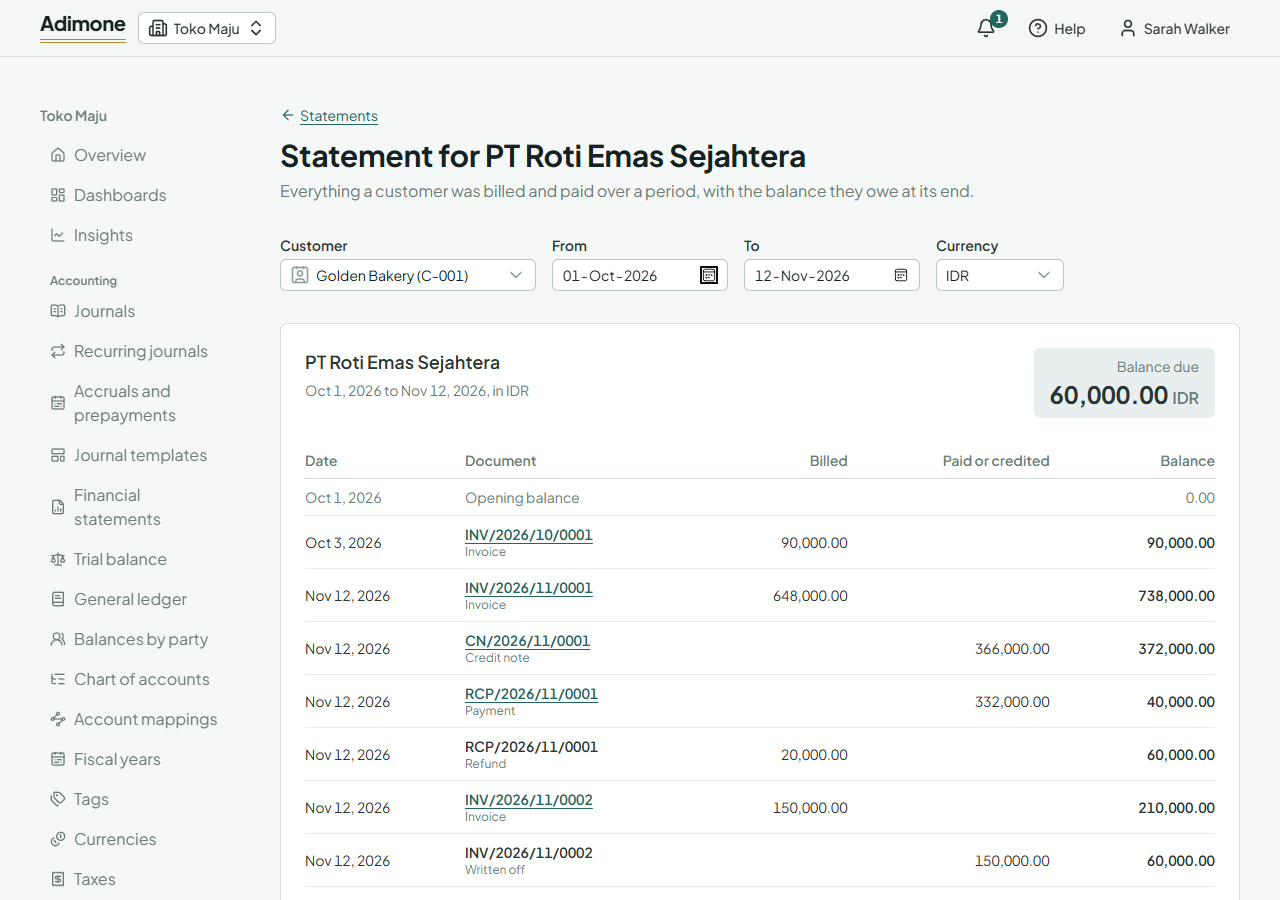
A reversed document shows twice: once as it was posted and once marked Reversed, so the two cancel out.
If the balance includes amounts that aren't from documents, such as a journal that names the customer or a revaluation of a foreign currency, a note says how much. The statement shows the balance in your books; the open amounts count only invoices, credit notes and payments.
Issue and email it
- Issue gives the statement a number and keeps its PDF exactly as it is now. Issue it again later for an updated one.
- Issue and email also sends it to the customer's primary contact. If no contact has an email address, nothing is issued: add an address on the customer's page, or issue it without emailing.
After issuing, open the PDF to download it, or choose Email to send it to someone else, the same way as other sales documents.
Statements for all customers
- Open Statements in Sales and choose Statements for all customers.
- Pick the period, one currency or Every currency, and whether to email each statement.
- Choose Issue statements.
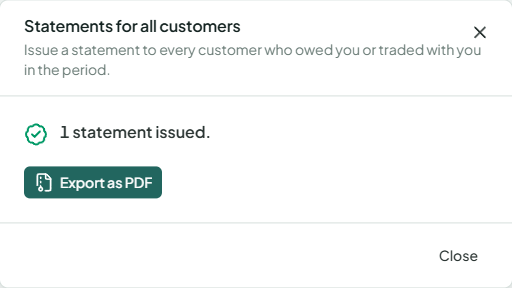
Every customer whose account moved in the period, or who still owes you or holds credit at its end, gets one statement per currency. When it's done, the list names any customer without an email address, and Export as PDF downloads every statement in one zip file to print or send yourself.
If issuing stops partway, for example because the connection dropped, choose Continue: it picks up where it stopped and issues no statement twice.
Find issued statements
Statements lists every statement issued, newest first. Filter by customer or date, open a PDF, email it again, or tick several and export them as PDFs. Choose a customer's name to see their statement for the same period as it stands now.