
Bank statements and reconciliation
Import your bank's statement, match its lines to the books, and close each month when what the bank says and what the books hold agree.
Reconciling an account checks the books against the bank: every movement on the bank's statement should be in the books, and the balance the bank shows should be the balance the books have cleared. Open Reconcile under Banking, or choose Reconcile from an account's menu on Bank and cash, and pick the account at the top.
The page has three tabs: Match (the bank's lines beside the books'), Statements (the files imported) and Reconciliations (the open one and the closed ones). Reconciling shows what accounts hold, so it is open only to members who may see cash balances; importing, matching and closing need permission to reconcile, usually the owner's and the accountant's.
Import a statement
- Export the statement from your internet banking: a CSV file, an OFX file (also called Money or Quicken) or a CAMT.053 XML file. Up to 5 MB and 5,000 lines.
- Choose Import statement and Choose a file. Adimone reads it and shows the lines it found before anything is saved.
- For a CSV file, check Which column is which. Adimone guesses the columns from the header's words (Tanggal, Keterangan, Debet, Kredit, Saldo, Date, Amount and so on); the columns in use are highlighted in the file's first rows. Pick whether the amounts are One column (money out below zero) or Two columns for money out and money in, the Date format, the Decimal mark, and how many title rows come before the header. Tick Money out is shown above zero for a card statement that shows spending as a positive amount.
- When something can't be read, the problem shows beside the column it concerns, or above the lines with the file's line number.
- Choose Import.
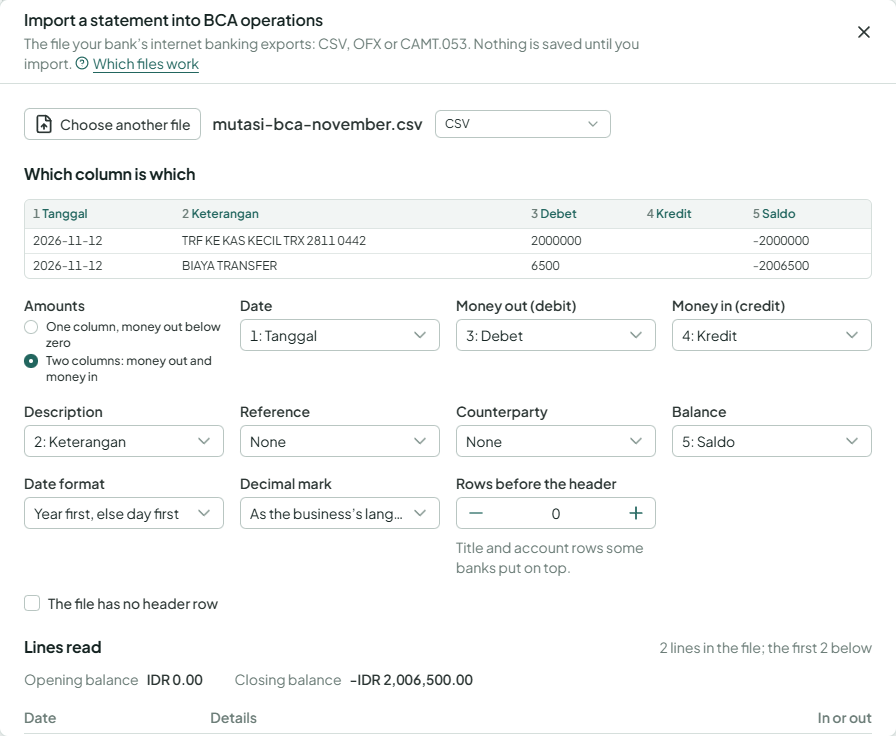
Lines already imported, from this file or an earlier one that overlaps it, are skipped, and so are days a closed reconciliation already covers. Importing the same file twice is refused. When the file names an account number that isn't this account's, Adimone warns you; tick It is: import it anyway only when you're sure.
Statements come into bank accounts and company cards. A cash account has no statement: match its book lines by hand against a cash count.
Statements lists the files imported, with the days they cover, the lines they brought and the balance they state. See its lines shows one statement's lines; Remove statement takes a statement out again while none of its lines is matched or reconciled.
Match lines
On Match, From the bank lists the statement's lines and In the books lists what was posted to the account and isn't cleared yet. Amounts are money in above zero and money out below.
- Match automatically matches every bank line that has exactly one book line of the same amount within ten days (or exactly one its text names, such as an invoice or payment number). Lines with more than one possible book line are left for you.
- Run rules runs your matching rules on the unmatched lines, after showing what they would do. Rules also run by themselves on each statement you import.
- Find its book line, in a bank line's menu, lists the book lines of its amount within ten days, those the bank's text names first, then the nearest. Pick one and choose Match.
- To match several lines at once (one deposit for three receipts, a transfer and its fee), tick them on both sides. The bar at the bottom adds up each side; Match turns on when the two sums agree.
- Ticking book lines alone clears them without a bank line (Clear without a bank line): for a cash count, or a month you reconcile from a paper statement.
A book line posted in another currency than the account's can't be matched to it, and says so.
To take a match back, choose Undo the match from the line's menu, on the bank's Matched lines or the books' Cleared lines. Lines a closed reconciliation covers can't change.
Set a line aside
A bank line that should stay out of the books, such as a duplicate or the bank's own reversal, can be Set aside with a reason. The owner sees it on the review list. Bring back returns it to the lines to match.
Reconcile and close
- Choose Start reconciling. Enter the day it goes Up to (usually the statement's last day) and the Balance on the statement that day. Adimone fills both from the latest statement when it states its balance. The first reconciliation of an account also asks the balance it starts from; later ones start from the last one's closing balance.
- The reconciliation shows as a sum: what The bank says, less what is Cleared in the books, is the Difference. Below it, how many bank lines up to that day aren't matched yet.
- Match lines until the difference is zero and no line is left. The difference then shows over a double rule: Balanced: ready to close.
- Choose Close reconciliation.
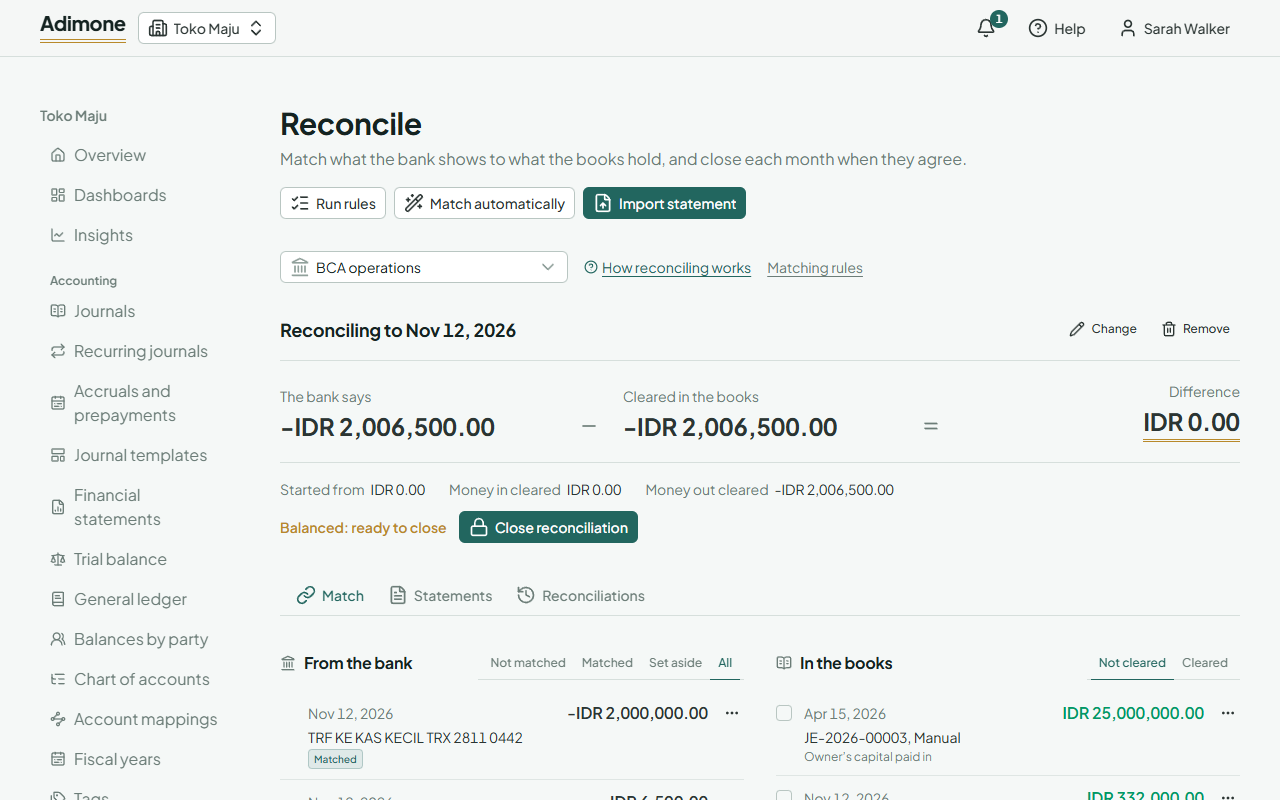
A difference that won't go away usually means something in the bank isn't in the books yet (bank charges, interest, a payment nobody recorded): post it, then match it. For lines that come back every month, a matching rule can post them for you. Book lines dated after the day stay for the next reconciliation.
A company card reads as owed throughout: enter what the card statement says is owed, and the sum compares what is owed.
Closing fixes the matches and lines it covers. Reconciliations lists them with the balance the bank stated and the money in and out that cleared. To correct a closed month, choose Reopen on the latest closed one (only while none is open) and give the reason; the owner sees it on the review list.