
Refunds and voids at the till
Give a customer their money back for goods they return, void a sale rung up by mistake, and print or email the receipts.
A sale at the till is posted the moment it is paid, so it is never edited. When goods come back, you refund them: the customer gets their money back, the goods return to stock and your books reverse what the sale recorded for them. When a sale should never have happened (rung up twice, the wrong customer at the till), you void it while its shift is still open.
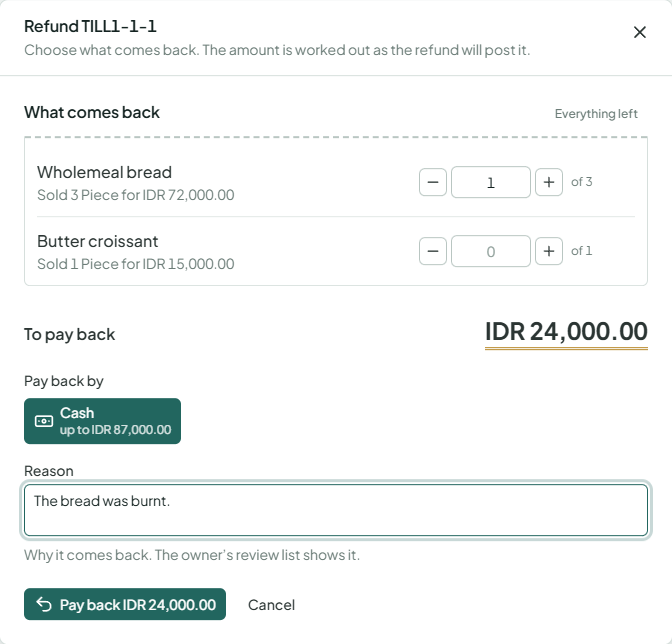
Refund a sale
- Open the sale: from Sales under Point of sale, or a shift's See its sales.
- Choose Refund.
- Under What comes back, use + and − on each line, or type how many. Everything left takes back all that is left of the sale.
- For an item tracked by lot or serial number that left from several lots, pick the lot coming back.
- To pay back shows what the customer gets, worked out as the refund will post it: their share of the line's price, discount and tax. The last of a sale gives back exactly what is left, so nothing is out by a rounding.
- Under Pay back by, choose a way the sale was paid. Each shows how much of it is still left to pay back. Cash comes out of the register's drawer.
- Enter the reason and choose Pay back.
A refund can be paid at any register with an open shift, on any later day: when more than one shift is open, choose it under Paid out of. The sale shows what was refunded of each line, and the shift counts the refund and expects less cash in the drawer.
Refunds and voids are for the Owner and Administrators unless you give them to others, and a person who sells shouldn't refund their own sales: with checks and balances on, someone else refunds them. Every refund and void goes on the owner's review list with its reason.
When a refund is refused
- The drawer should hold less cash than that: the drawer doesn't have that much cash in the books. Pay back another way the sale was paid, or pay cash in first.
- The sale was paid … this way: you chose more than the sale took that way. Pay the rest back another way, in a second refund.
- Less than that is left of this lot: that lot has less left to come back. Pick another lot, or take back less.
Void a sale
- Open the sale while its shift is still open, and choose Void sale.
- Enter why it was wrong, and choose Void sale.
The whole sale is undone: its stock comes back at what it cost, its journals are reversed and the drawer no longer expects its cash. The sale stays in the list marked Voided, so its number isn't reused. A sale that already has refunds can't be voided: refund the rest of it instead. If the drawer no longer has the cash the sale took (it was paid out since), refund it by another way of paying.
Print and email receipts
- After taking payment, choose Print receipt beside Next sale. The browser's print dialog opens with the receipt sized to the receipt paper.
- On a sale's or refund's page, Print receipt prints it. The first print gives the receipt its number for good; every later print, with Reprint, is marked COPY, and a voided sale's receipt is marked VOID.
- Email receipt sends it to the customer's email address through the send panel.
A refund has a receipt of its own, showing the sale it refunds, what came back and how the money was paid back.
Find a refund
- Refunds, beside Sales under Point of sale, lists every refund, newest first, with a register filter.
- On a shift's page, See its refunds lists the refunds paid out of that shift.
- A sale's page lists its refunds.
Open a refund to see what came back of each line and into which lot, the taxes reversed, how the money was paid back, the reason and its journals.